Your club's public face
Your club profile is what supporters see when they find you in the Game Set Engage mobile app. The name, logo, and home ground all come from one screen in your dashboard: Club Settings. Keep it current and fans always know they're following the right club.
This guide walks through editing your club details, uploading a logo, and setting your location the right way so your club lands in the correct city.
Open Club Settings
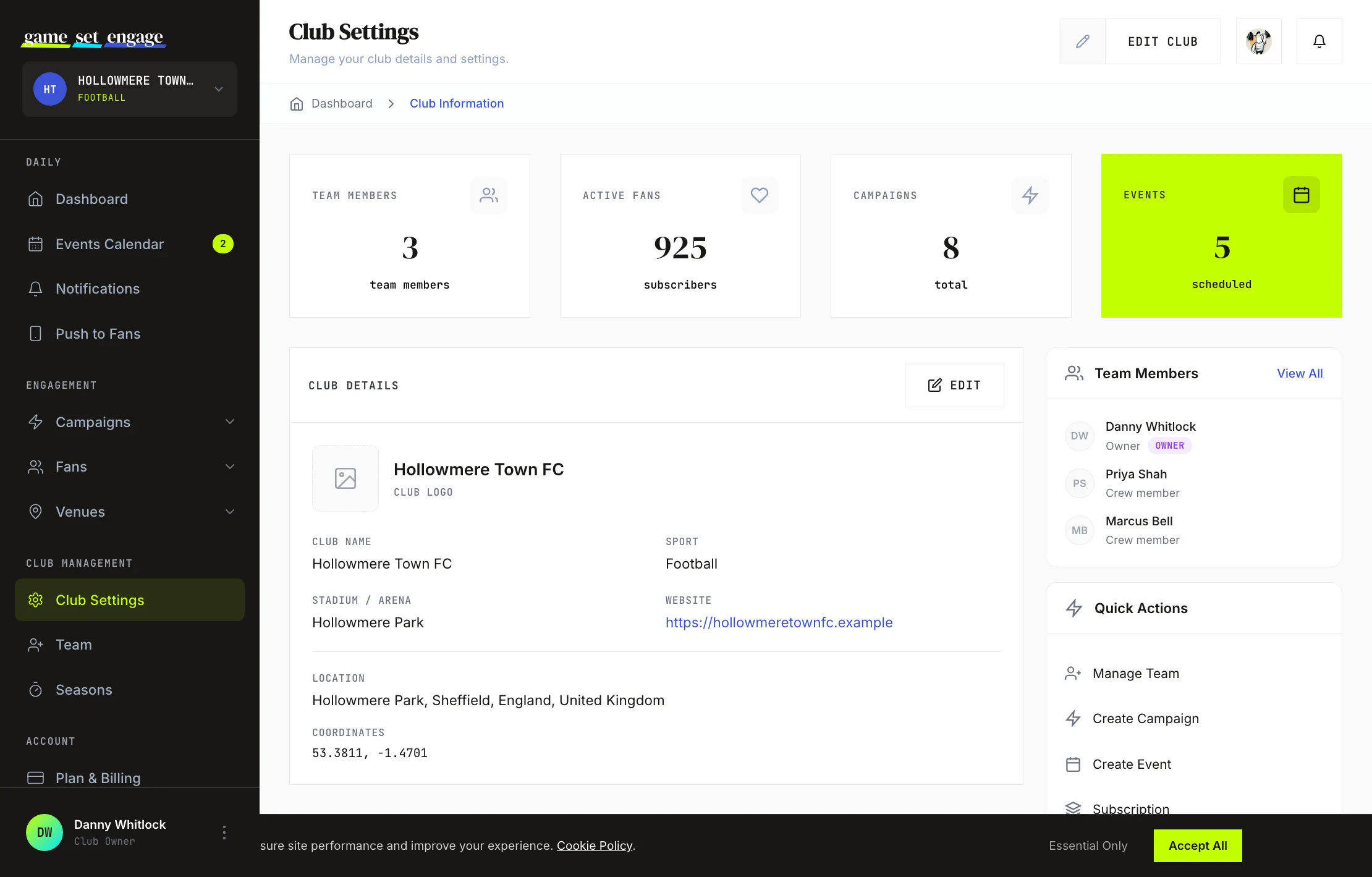
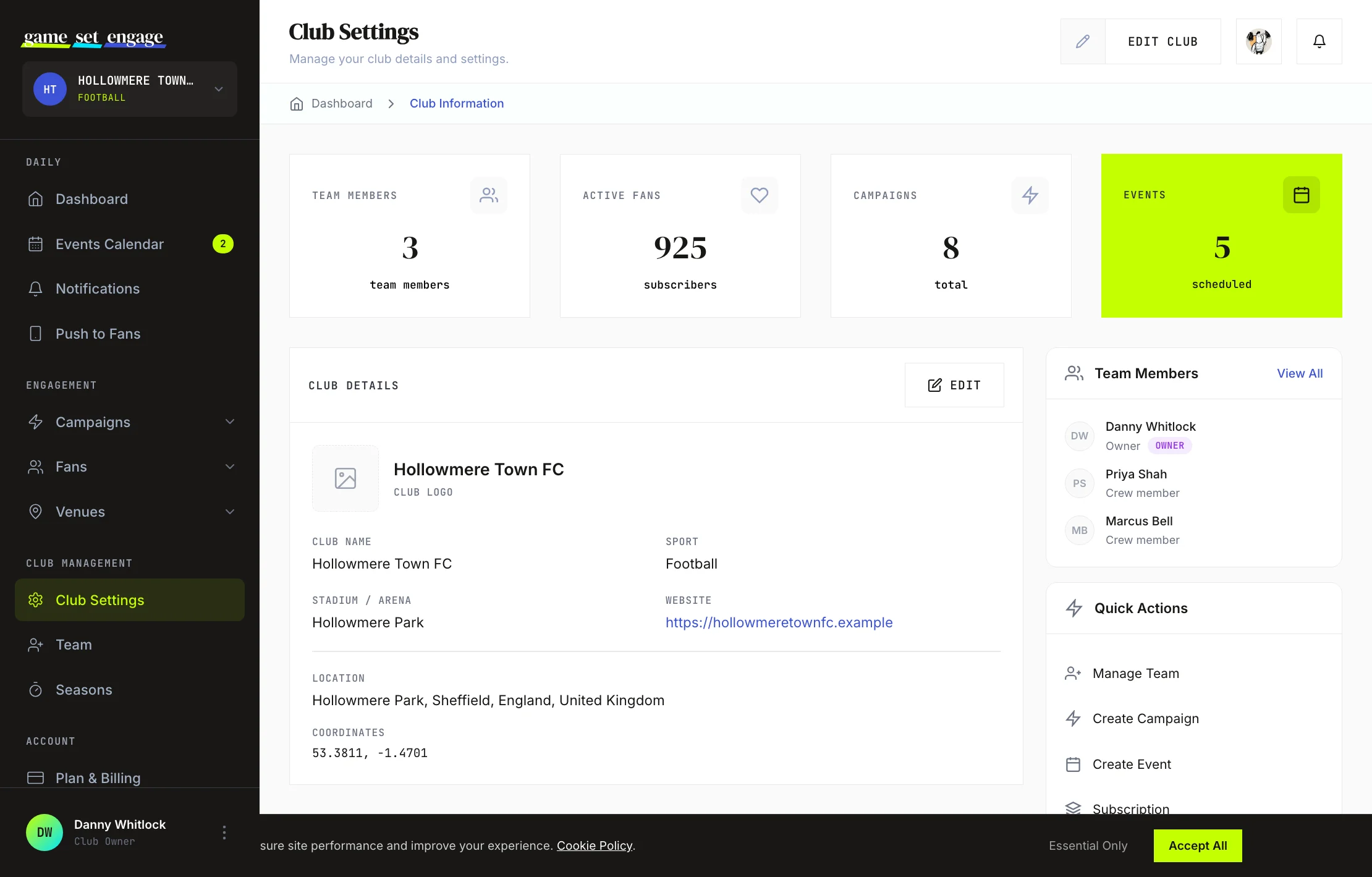
From your dashboard, go to Club Management → Club Settings. Club Settings is for the club owner. The page opens in display mode and shows:
- A summary of your club details and logo
- Four stat cards at the top: team members, active fans, campaigns, and events
- A sidebar with your team members and quick actions
To make changes, click the Edit Club button in the page header, or the Edit button on the Club Details panel. The panel switches into an editable form. Click Cancel at any time to drop your changes and return to display mode.
Edit your club information
In edit mode you can update the following:
- Club name — what your supporters call you. This is required and can be up to 100 characters.
- Stadium / home ground — your stadium, arena, or pitch. You search for this rather than type it freely (see below).
- State / province — optional, useful where a city name is shared across regions.
- Website — your club's site, if you have one. Leave it blank if you don't.
Your sport is set when you first create your club and isn't changed from this form. If you need to correct it, reach out through the Contact Support link.
Upload your club logo
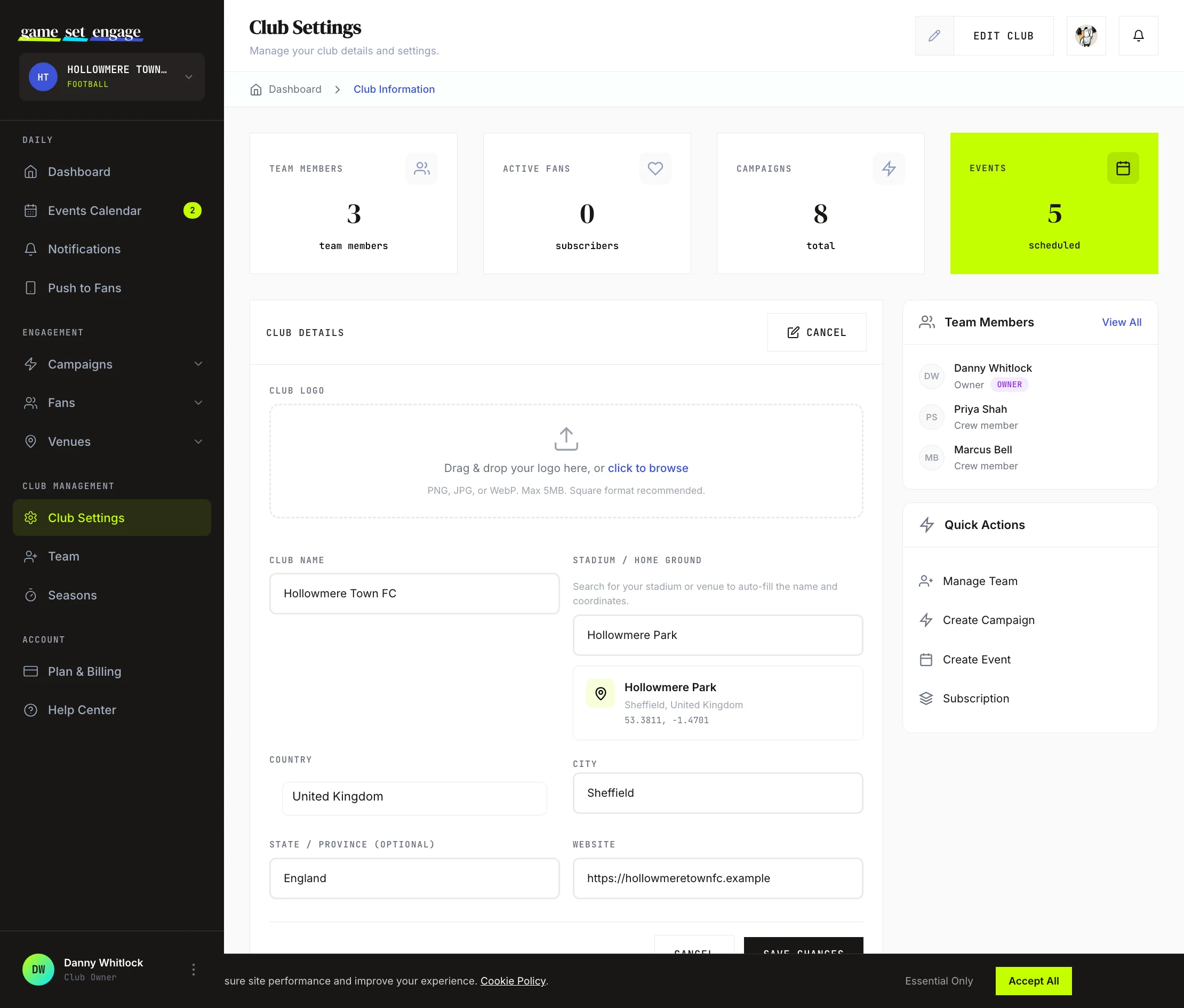
A logo makes your club recognisable everywhere fans see you. In edit mode, find the Club Logo box near the top of the form.
- Drag your image onto the upload box, or click it to browse your files
- A preview appears so you can check it looks right
- Save your changes to store it
Use a PNG, JPG, or WebP file up to 5MB. A square image works best, since the logo is displayed as a square throughout the dashboard and app.
Tip: A clean, high-contrast crest on a transparent or solid background reads better at small sizes than a busy photo. Aim for at least 400×400 pixels.
Set your home ground
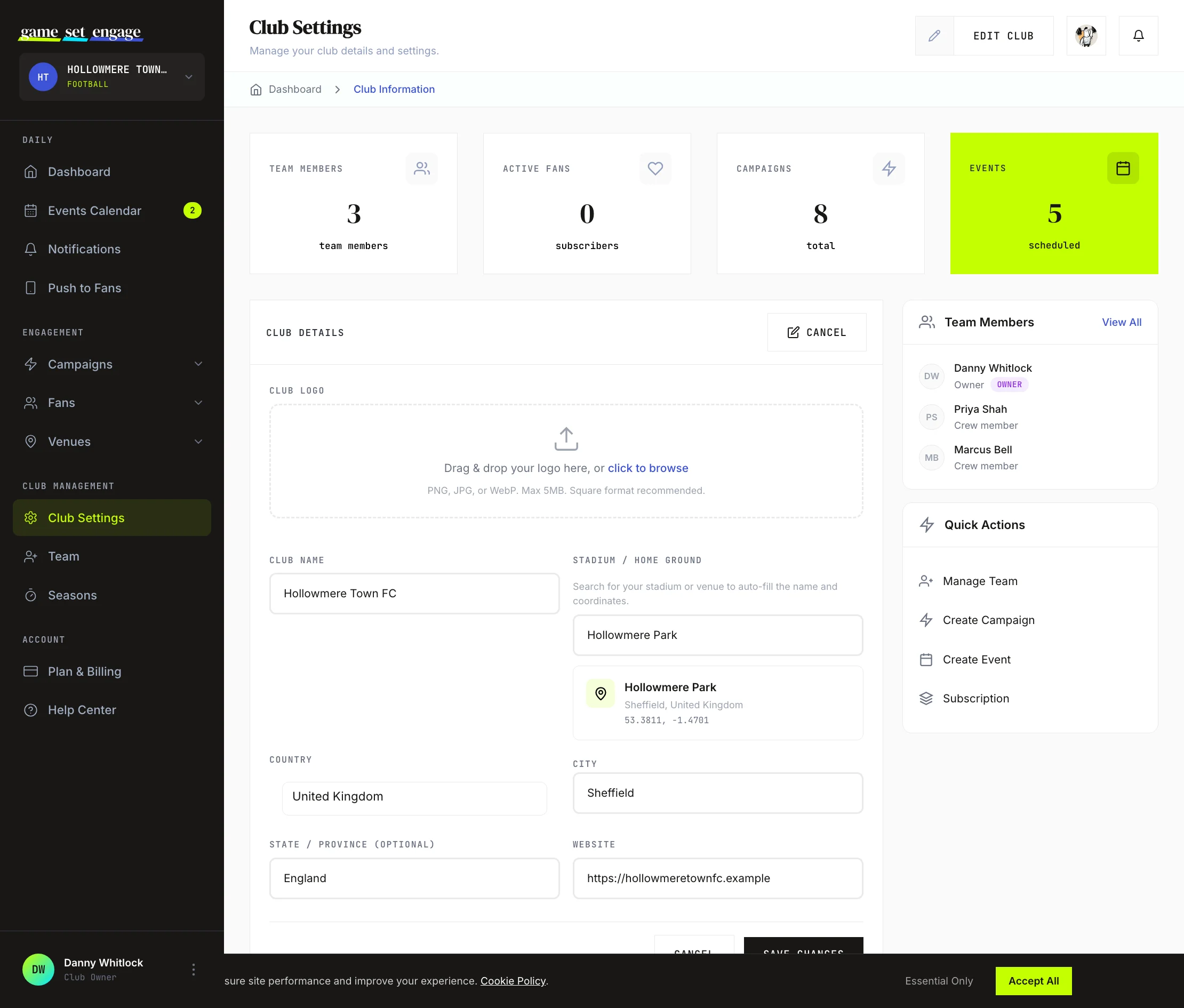
Your home ground isn't typed in by hand. Instead, you search for it, and Game Set Engage fills in the exact name and map coordinates for you.
- Start typing the name of your stadium, arena, or ground in the search box
- Pick the right match from the list of suggestions
- A small preview confirms the venue name, area, and coordinates
Setting the home ground this way keeps your map location accurate, which matters for check-in campaigns and for fans finding you nearby.
Set your location: country first, then city
Location is two connected fields, and the order matters.
1. Choose your country. Select it from the country dropdown. Popular countries sit at the top of the list; the rest are alphabetical.
2. Choose your city. Once a country is selected, the City field appears. Start typing and a list of matching cities shows up. You must pick a city from the suggestions — you can't free-type a city name and save it.
This is deliberate. Picking from suggestions keeps city records clean and consistent, so "London" never ends up split across half a dozen spellings. If you try to save without choosing a city from the list, you'll see the message "must be selected from the suggestions" and the form won't save until you pick one.
Tip: If your city doesn't appear right away, keep typing a few more letters. Suggestions come from a live places search, so a more complete name usually surfaces it.
Save your changes
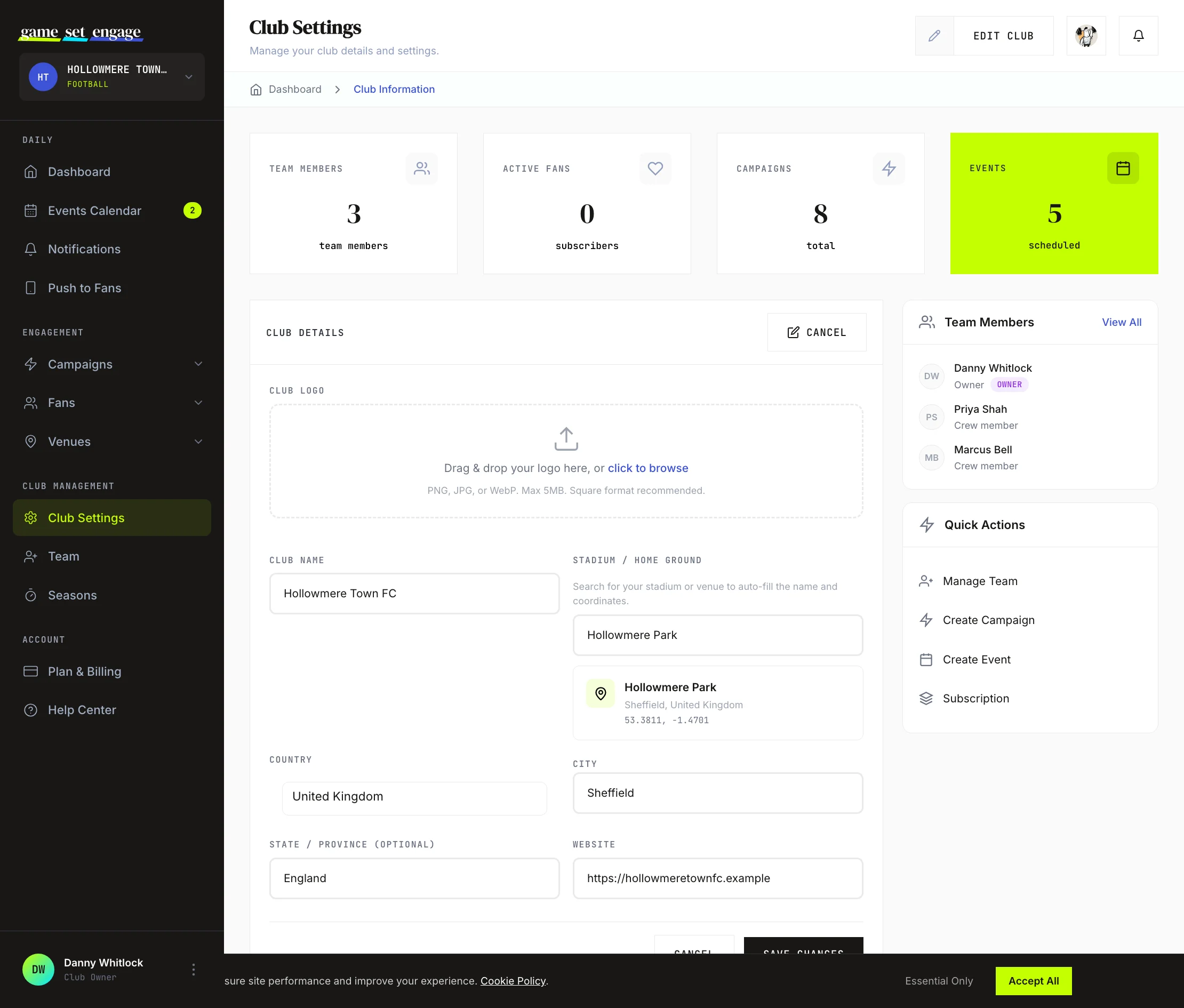
When everything looks right, click Save Changes. You'll return to the display view with a confirmation that your club information was updated. If anything is missing or invalid — a blank required field, or a city that wasn't picked from the list — the form stays open and tells you what to fix.
Your own login email
Club Settings holds your club's details, not your account. To change the email you sign in with, click your name at the bottom of the sidebar and choose My Profile. A new email needs your current password, and we send a confirmation link to the new address. Your current email keeps working until you open that link and click Confirm new email. Once you confirm, you're signed out on every browser, so sign in again with the new email.
Notes for naim
On City plans and up, Club Knowledge sits just below Club Settings and Fan Tags. It holds the things your data can't show, like who your sponsors are or which pubs show your games, and naim reads those notes when it answers your team's questions. See Club Knowledge.
What's next?
With your profile set, here's where to go next:
- Inviting and managing your team — bring crew on board to help run the club
- Seasons explained — organise your campaigns and events by season
- Plan, billing and upgrades — review your plan and fan usage
- Creating your first campaign — start engaging fans