Why seasons matter
Sport runs in seasons, and so should your fan engagement. A season in Game Set Engage is a named span of time with a start and end date. Once you've defined one, your campaigns and events sit inside it, which lets you look back and compare how this season's engagement stacks up against the last.
This guide explains how to create a season, what each status means, and how campaigns and events connect to a season.
Open the Seasons screen
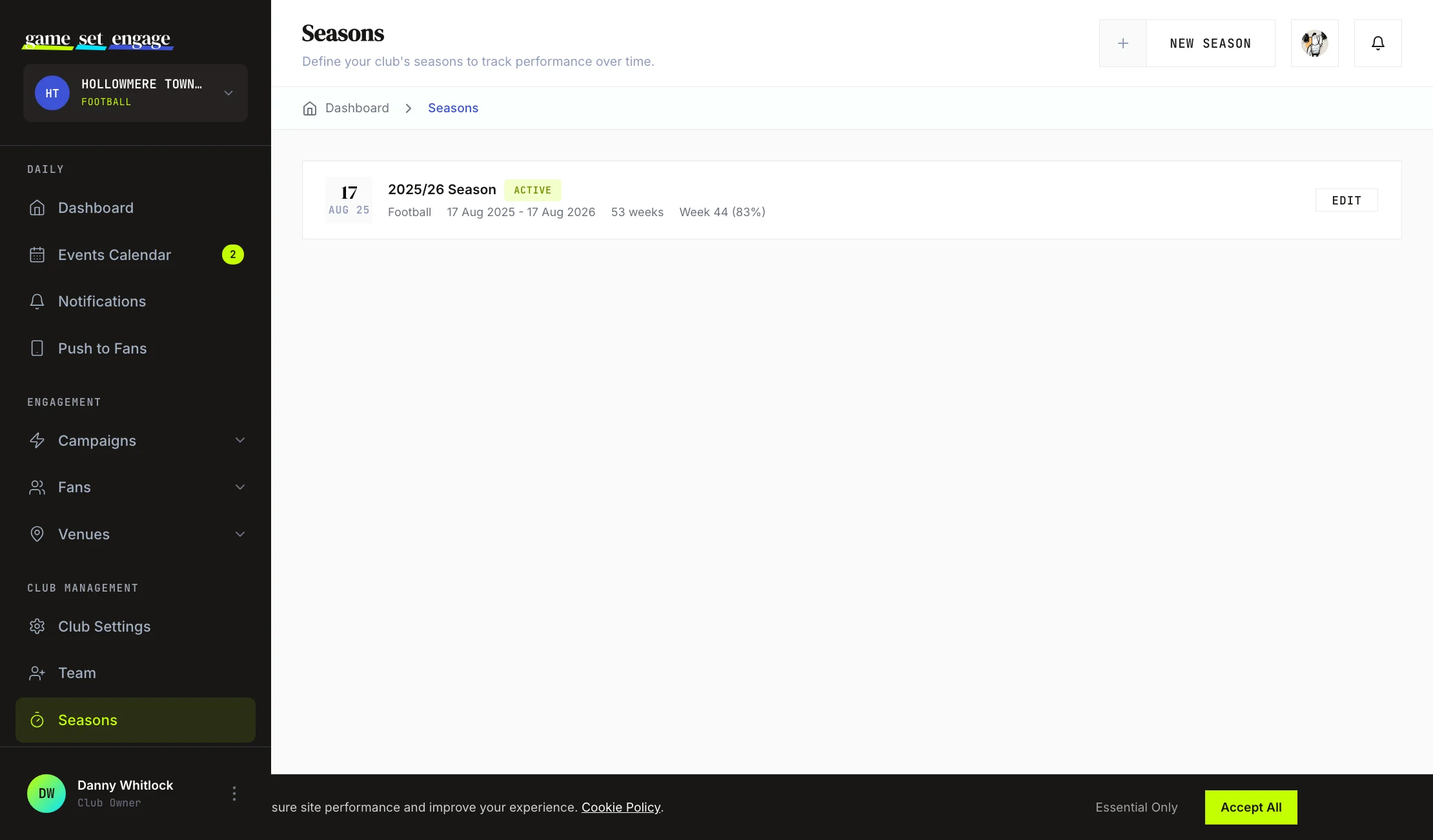
From your dashboard, go to Seasons. You'll see a list of every season you've created, newest first. Each row shows:
- The season name and a status badge (upcoming, active, or completed)
- The sport, if you set one
- The date range and the duration in weeks
- For an active season, the current week and a progress percentage
If you haven't made any seasons yet, you'll see a prompt to begin your first one.
Create a season
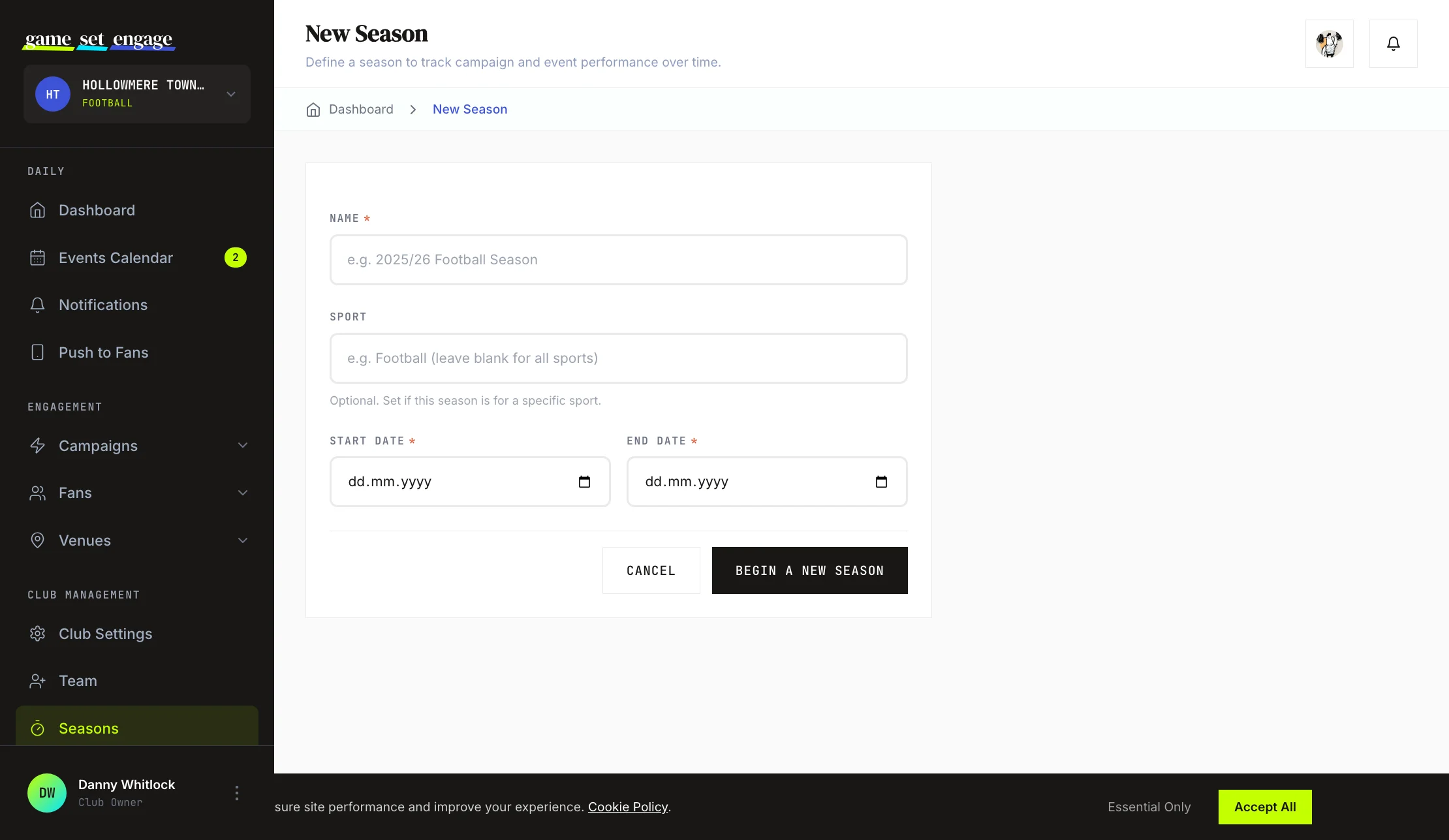
Click New Season in the page header and fill in the form.
- Name — required. Give it something clear, like "2025/26 Football Season."
- Sport — optional. Set it if the season is specific to one sport; leave it blank to cover all sports.
- Start date — required. When the season begins.
- End date — required. When it ends. This must be after the start date.
Click Begin a New Season to save. If the end date is on or before the start date, the form tells you to fix it before saving.
How statuses work
Every season has one of three statuses, and you can see them at a glance from the colour-coded badges on the Seasons list.
| Status | Meaning |
|---|---|
| Upcoming | The season hasn't started yet — its start date is in the future |
| Active | The season is currently running — today falls between its start and end dates |
| Completed | The season has finished — its end date has passed |
Game Set Engage keeps these statuses up to date for you based on the dates you set: an upcoming season becomes active once its start date arrives, and an active season becomes completed once its end date passes. For an active season, the list also shows which week you're in and how far through the season you are.
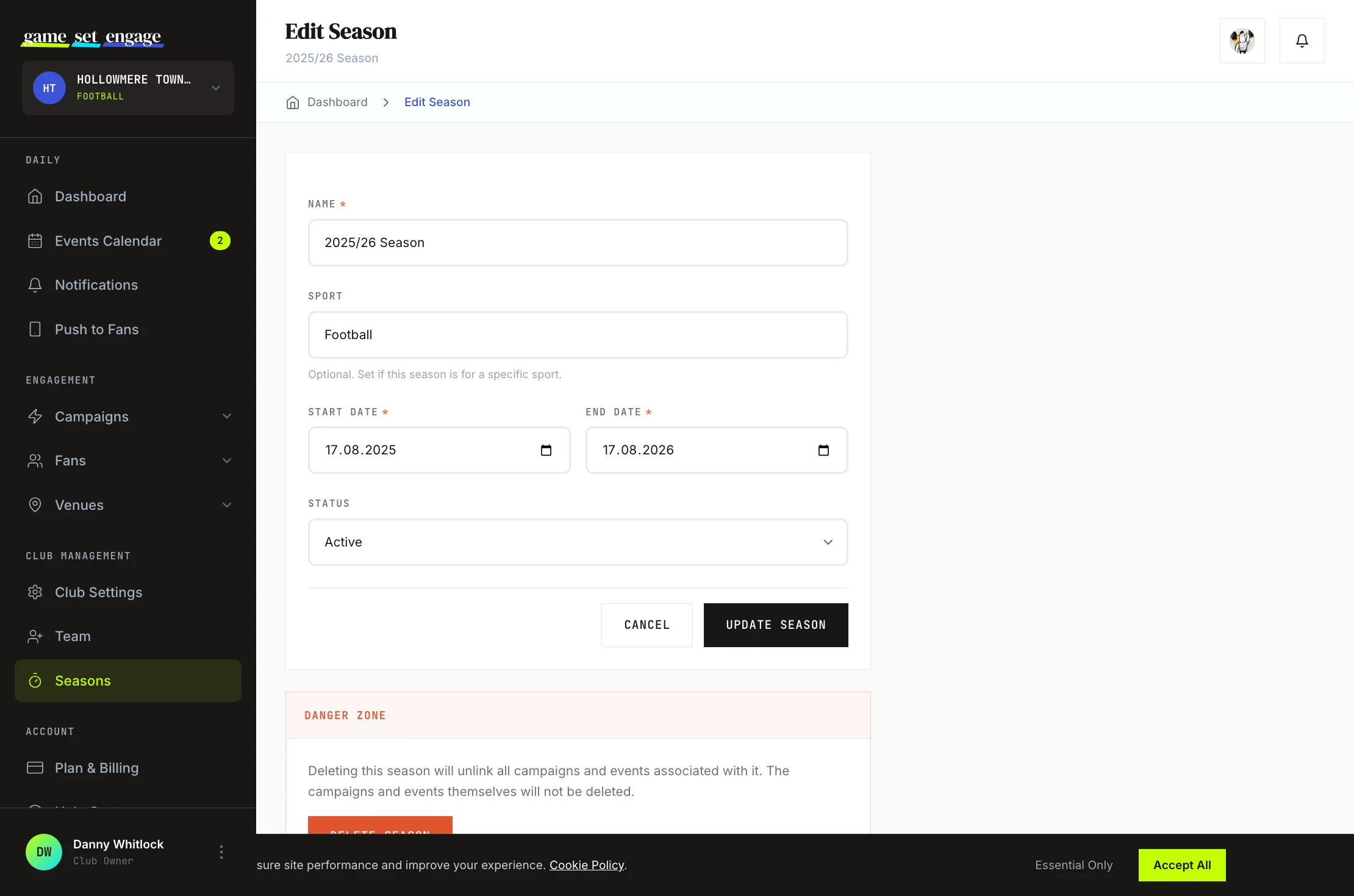
Tip: When you edit a season, you can set the status yourself from a dropdown. In most cases you can leave it alone and let the dates drive the status automatically.
How campaigns and events tie to a season
Seasons are the container that gives your campaigns and events context. When you run campaigns and schedule events during a season's date range, they belong to that season. That link is what lets you report on a season as a whole — total engagement, attendance, and campaign results across the entire span rather than one event at a time.
Because campaigns and events are linked rather than locked to a season, deleting a season does not delete the campaigns and events inside it. They simply stop being attached to that season and remain in your club. This makes it safe to tidy up old or mistaken seasons without losing any of your work.
Edit or remove a season
To change a season, click Edit on its row. You can update the name, sport, dates, and status, then click Update Season. To remove one entirely, use the delete option — remember that this only unlinks its campaigns and events, it doesn't remove them.
What's next?
Seasons give your reporting a backbone. Here's where to go from here:
- Creating your first campaign — run a campaign within your season
- Events calendar and team notes — schedule fixtures across the season
- Campaign analytics and reports — measure how the season is performing
- Club settings and profile — keep your club details current