Build your club's calendar
Your calendar is the shared schedule for everything your club does: league matches, training, fan meetups, fundraisers, and more. Once a match is on the calendar, you can tie a check-in campaign to it so fans earn points for being there. Notes let your crew keep details and reminders attached to each event, and @mentions make sure the right person actually sees them.
This tutorial covers creating events, browsing the calendar, adding notes, and mentioning your team.
Find your way around the calendar
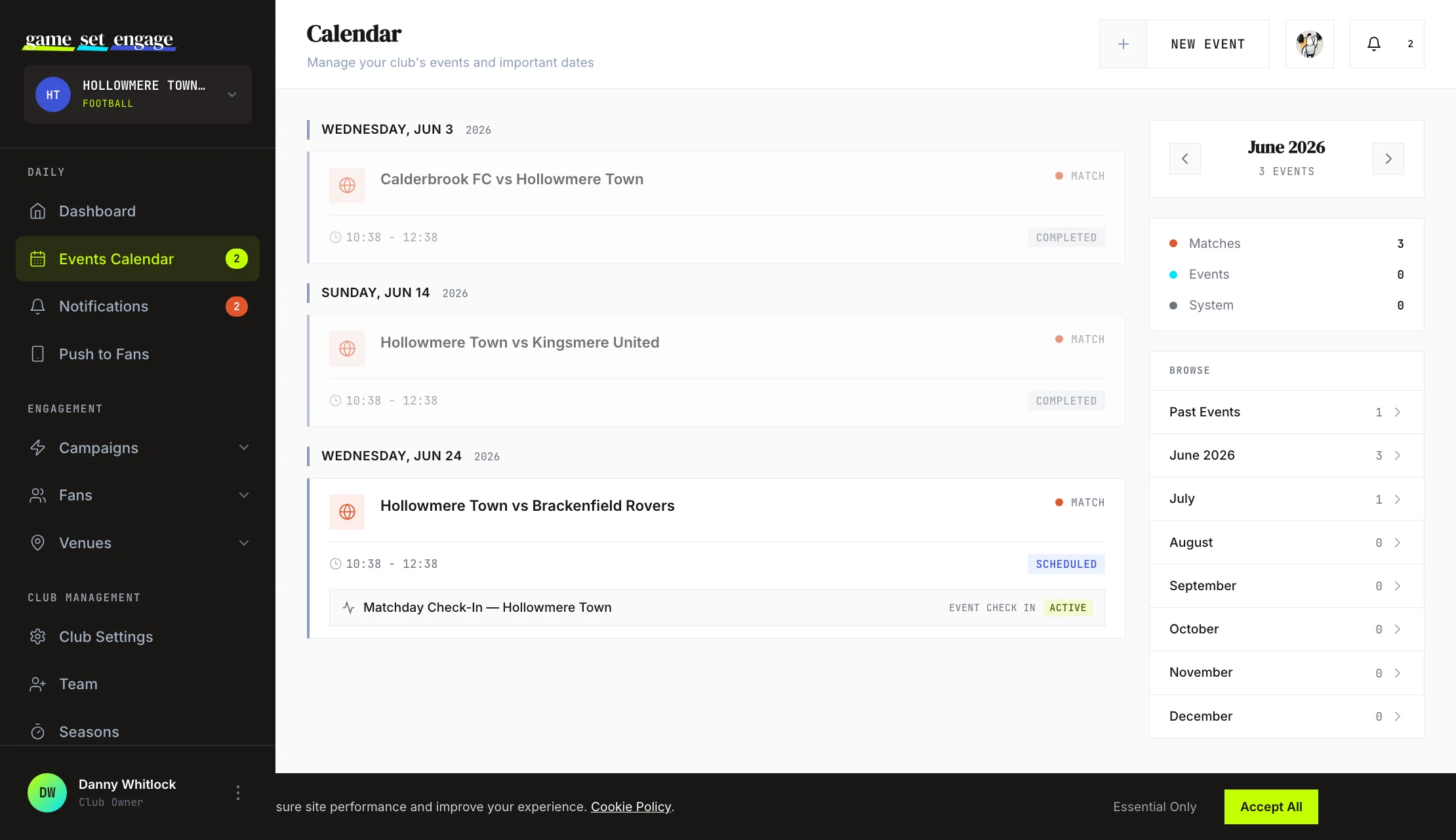
Open Events Calendar from the sidebar. The main view is a timeline of the current month, with events grouped under each date and the nearest ones labelled Today and Tomorrow.
The sidebar on the right helps you move through time:
- Month navigation at the top steps you back and forward a month at a time
- Type breakdown shows how many Matches, Events, and System entries fall in the month you're viewing
- Browse lists Past Events, the current month, and the next six months, each with a count, so you can jump straight to any period
Step 1: Create an event
Click New Event in the top-right of the calendar to open the form.
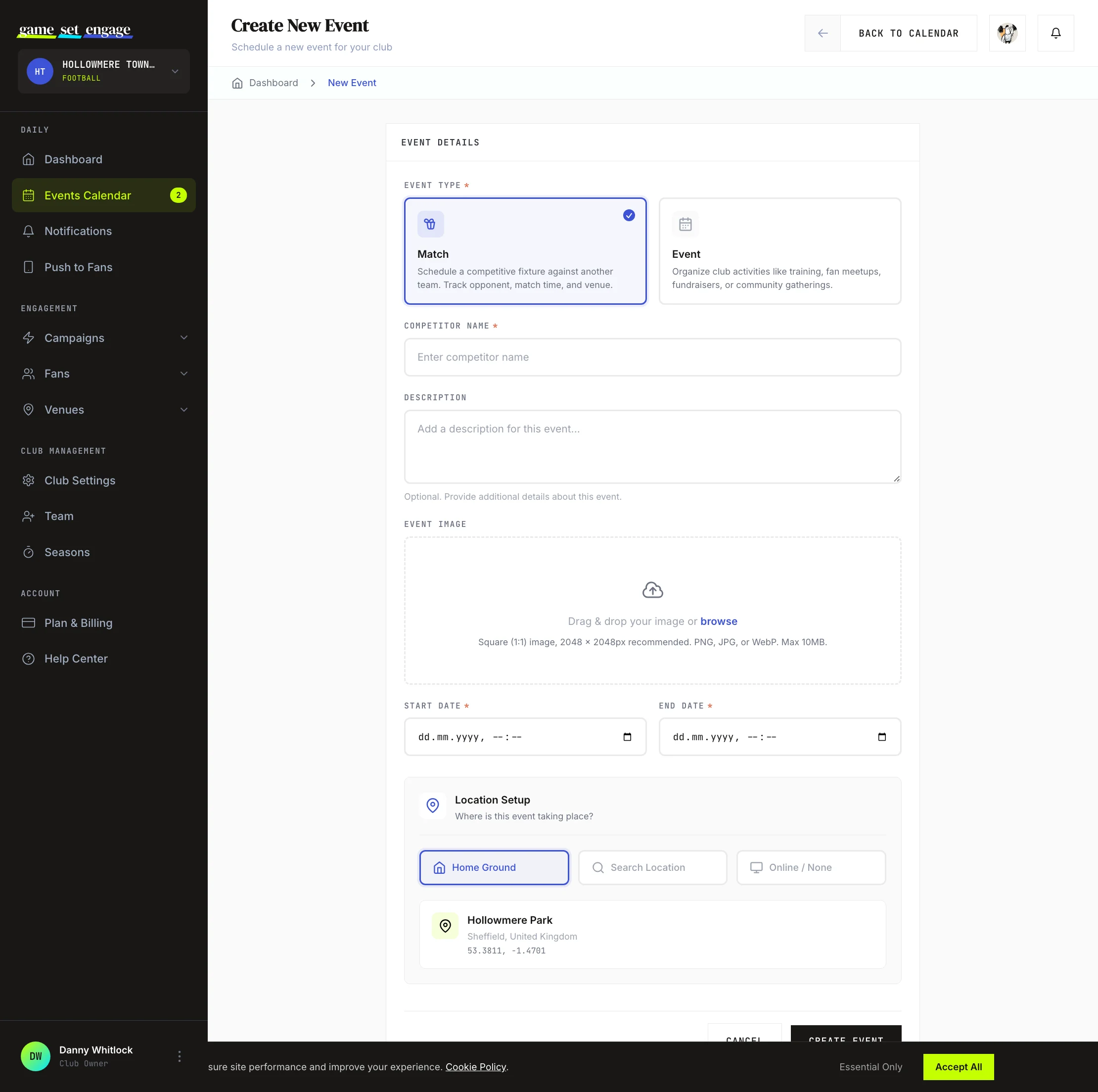
- Choose a type. Pick Match for a competitive fixture against another team, or Event for club activities like training, meetups, or fundraisers. (System entries are platform-wide announcements and are managed by Game Set Engage, not by clubs.)
- Add the details. For a match, the title field becomes Competitor Name; for an event, it's the Event Title. Add an optional description and, if you like, an event image.
- Set the date and time. Choose a start and an end. The form shows the duration once both are set.
Step 2: Set the location
The Location Setup section gives you three ways to say where the event happens:
- Home Ground — one tap uses your club's stadium and saved coordinates (available once you've set a home ground in your club profile)
- Search Location — type at least three characters to search for any place, such as an away ground or a partner pub, and pick it from the results
- Online / None — for events with no physical location
A preview confirms the name, address, and coordinates before you save. When you're done, click Create Event and you'll land on the event's detail page.
Tip: Setting an accurate match location matters for check-in campaigns. Fans earn 5× points at the stadium, 3× at a partner venue, and 1× at home, and the location you set is what those check-ins are measured against.
How events connect to check-in campaigns
A match on your calendar is the anchor for an Event Check-In campaign. When you create a check-in campaign tied to a fixture, fans open the Game Set Engage mobile app on match day and check in from wherever they're watching. The points they earn depend on where they are, using the stadium, partner venue, and home multipliers above.
That's the loop in short: you schedule the fixture here, fans check in on the app, and you get attendance data back. For the full walkthrough, see Creating your first campaign and Campaign types explained.
Step 3: Add a note to an event
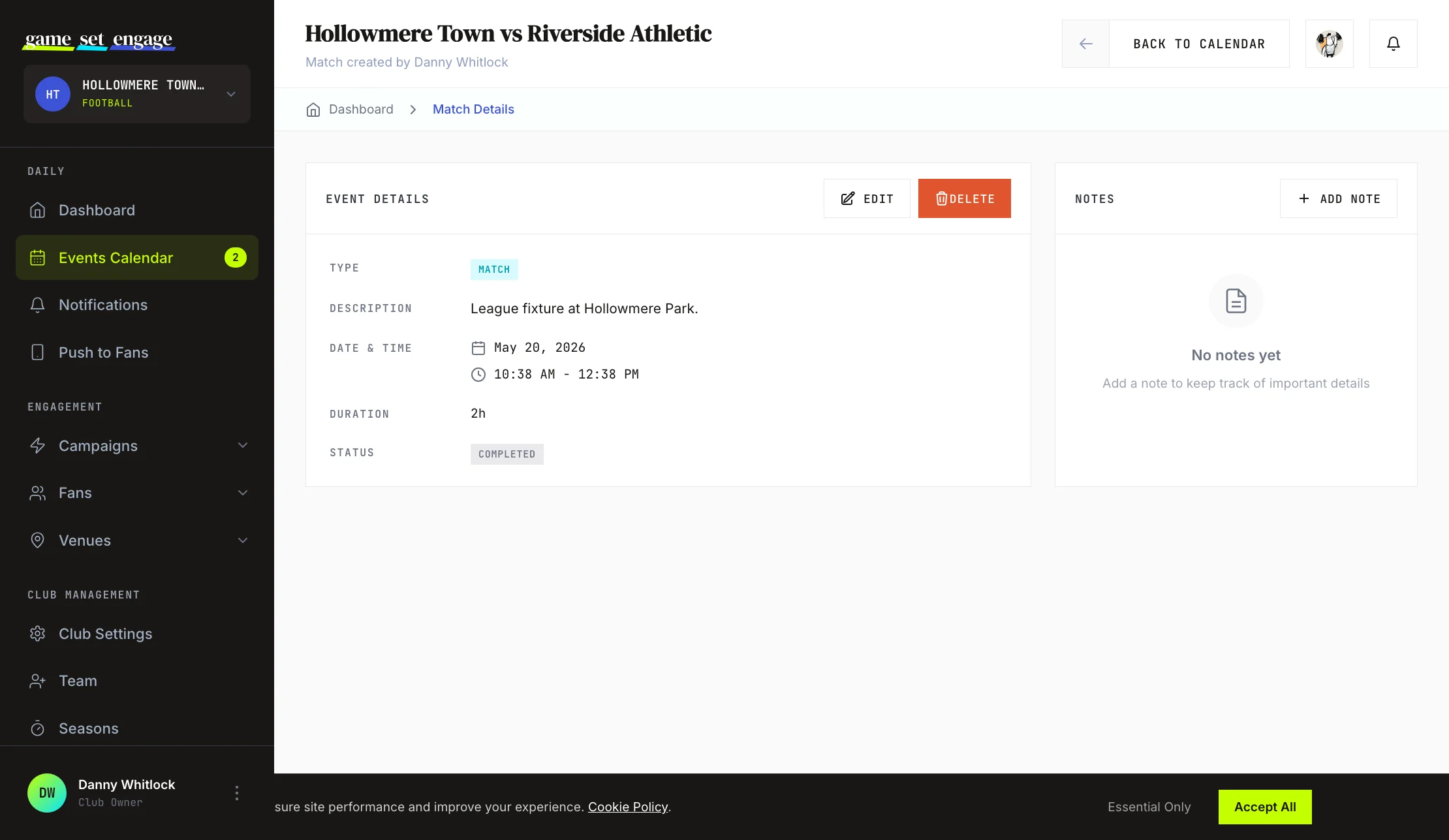
Open any event and find the Notes panel on the right. Notes are for your crew: reminders, logistics, who's covering what. Fans never see them.
- Click Add Note to open the note box
- Type your note
- Click Add Note to post it
New notes appear at the top of the list straight away, with the author's name and how long ago it was written. You can remove a note with the small delete button on it.
Step 4: @mention your crew
Notes get useful when you can point them at a specific person. While writing a note, type @ to bring up a list of your club's crew members. Start typing a name to filter, then pick the person you mean.
- The mention list is drawn from your club team members, not your fans
- You can mention more than one person in a single note
- Anyone you mention gets a notification in their dashboard linking straight back to the note
This is powered by an in-line picker as you type, so you stay in the flow of writing. For example, a note like "@Sam can you confirm the away coach booking?" tags Sam and lands in their Notifications.
Notes update in real time
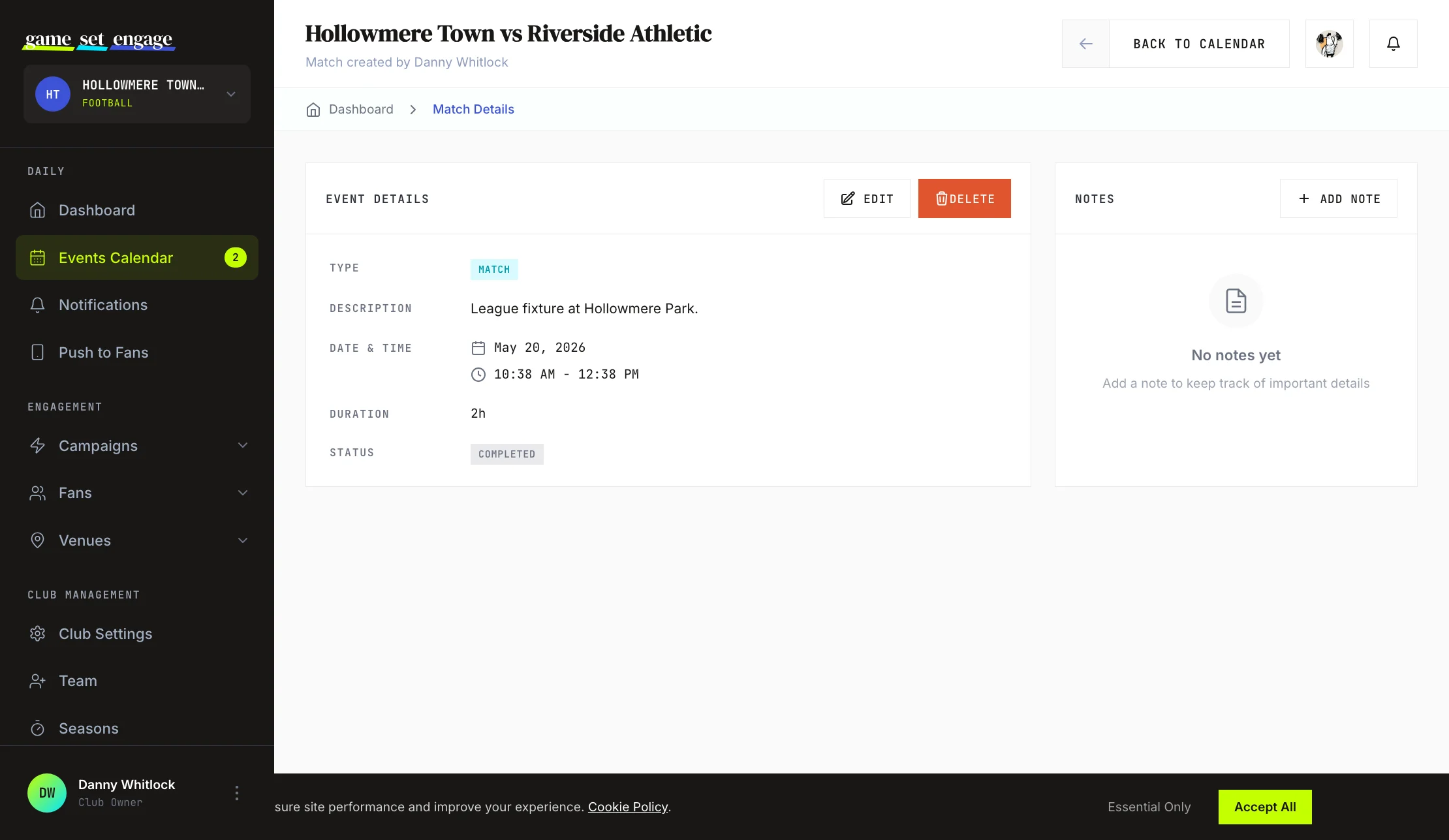
You don't need to refresh to see new notes. When anyone on your crew posts a note on an event you're viewing, it appears in the list live. That keeps everyone looking at the same event on the same page, which is handy in the busy run-up to a match.
When you mention a crew member, the notification reaches them through the dashboard. For how those notifications work and where to read them, see Staying on top of notifications.
What's next
- Staying on top of notifications — where your mentions and alerts land
- Creating your first campaign — turn a fixture into a check-in campaign
- Push notifications to fans — tell supporters a match is on
- Inviting and managing your team — add the crew members you can mention