Reach fans where they already are
A push notification is the most direct line you have to your supporters. It lands on the lock screen of fans who have the Game Set Engage mobile app installed with notifications turned on. Use it to announce that matchday check-in is live, to point fans at a new campaign, or to remind them about an offer before kick-off.
This tutorial shows you how to send a notification, choose where it opens when tapped, and keep your sends timed so fans stay glad to hear from you.
Note: Push notifications are delivered to the Game Set Engage mobile app. They reach fans who have installed the app, subscribed to your club, and left notifications enabled. They are not emails or SMS.
Check who you can reach
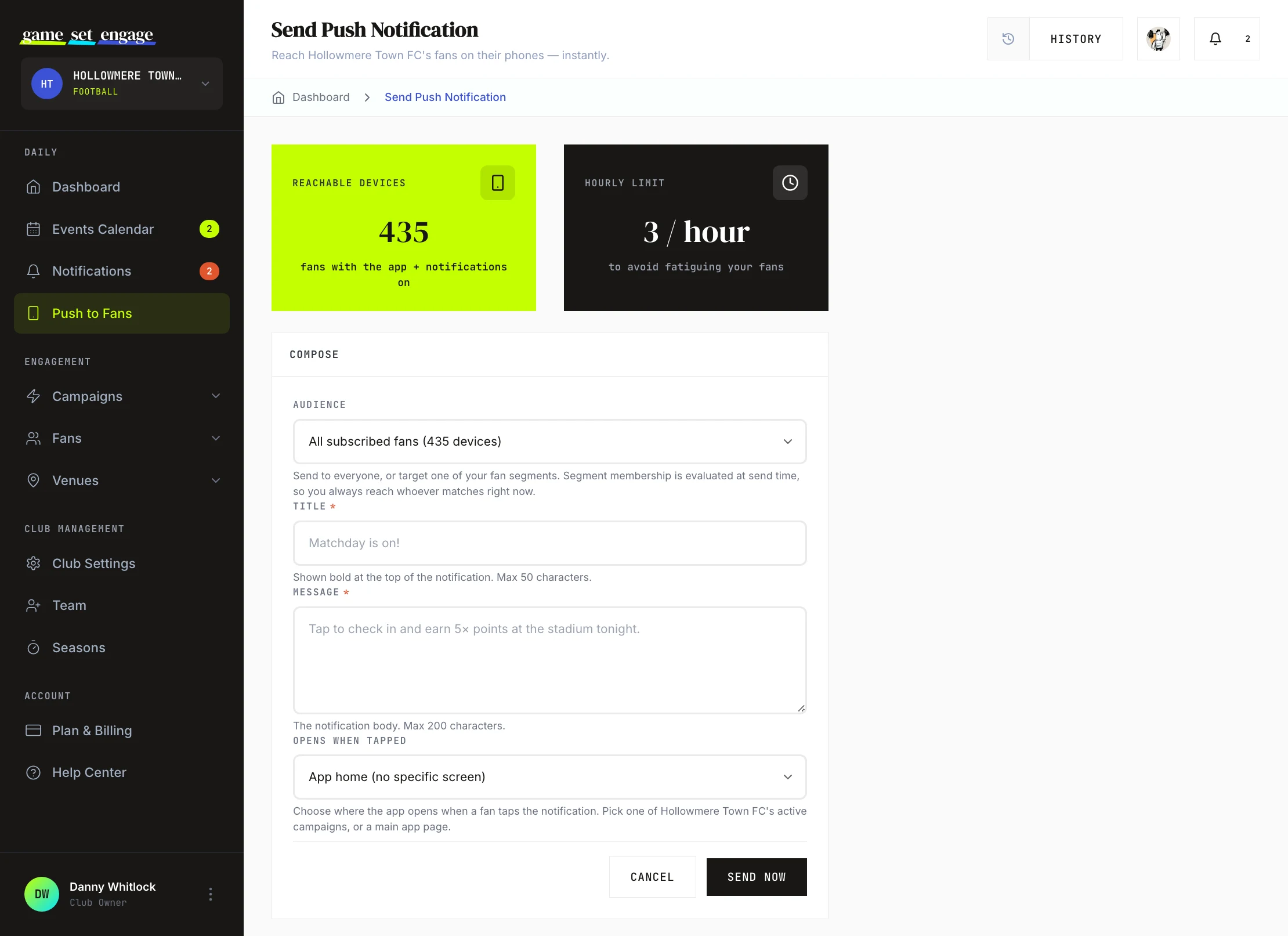
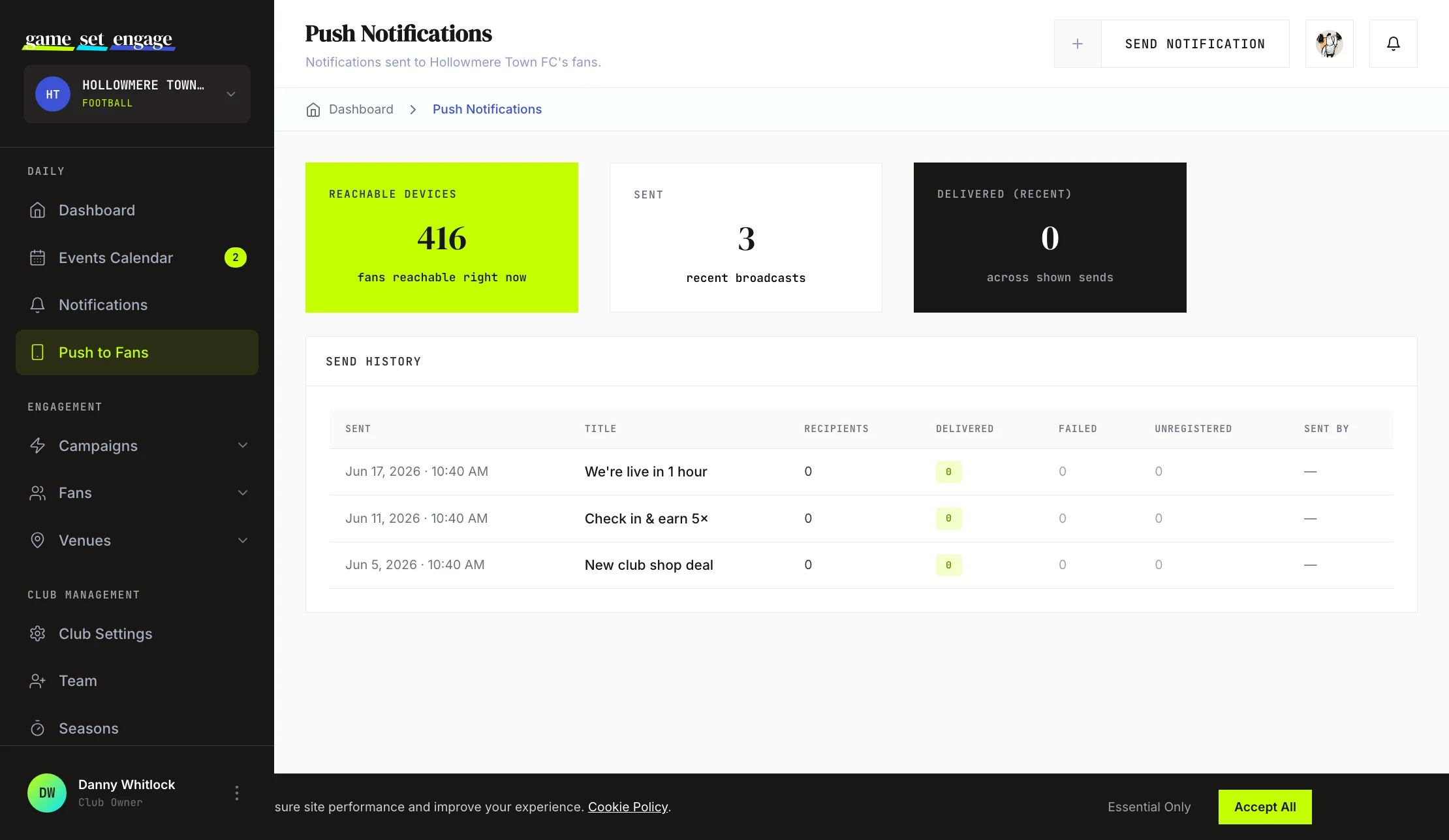
Open Push to Fans from the sidebar, then Send Notification. Before you write anything, two cards tell you what you're working with:
- Reachable Devices — how many of your subscribed fans have the app installed with notifications on right now. This is your live audience.
- Hourly Limit — you can send up to 3 notifications per hour to your club's fans, a guard against over-messaging.
If Reachable Devices shows zero, it means none of your subscribers currently have the app set up to receive pushes. As more fans install the app and subscribe, that number climbs.
Step 1: Choose your audience
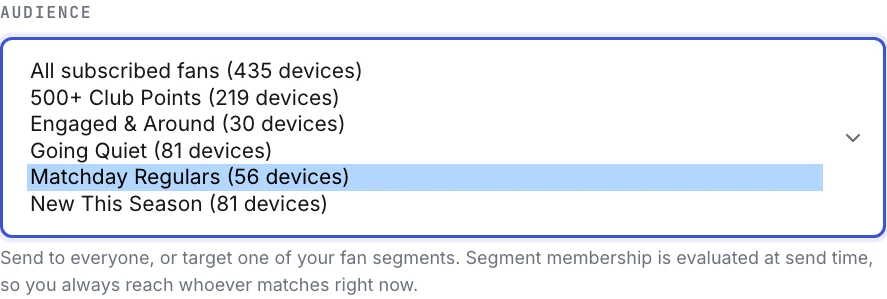
The first field on the compose form is Audience. By default it's set to All subscribed fans, with its live device count. On City, National, and Global plans the menu also lists each of your fan segments with its own reachable-device count, so you can aim the send at just that group — matchday regulars, fans going quiet, new joiners.
Segment membership is evaluated at send time: whoever matches the segment's rules at the moment you hit send is who the notification goes to. To build your first segment, see Fan segments and targeted push.
Step 2: Write the title and message
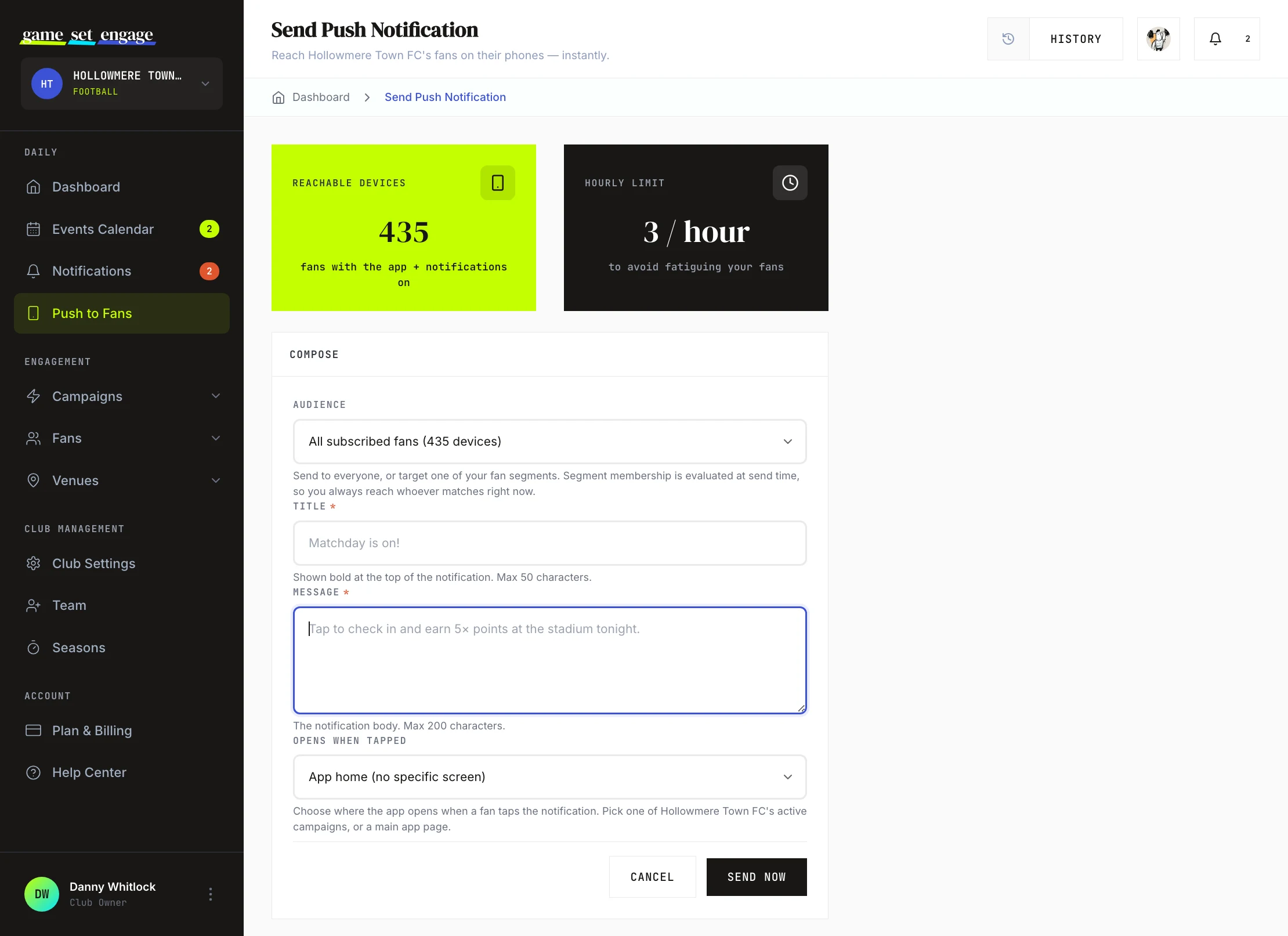
The compose form has two text fields:
- Title — shown bold at the top of the notification. Keep it short and clear, up to 50 characters. For example, "Matchday is on."
- Message — the body of the notification, up to 200 characters. Say what you want the fan to do. For example, "Tap to check in and earn 5× points at the stadium tonight."
Write the way a fan reads a lock screen: a glance. Lead with the point, and make the value obvious.
Step 3: Choose where it opens
The Opens when tapped menu decides which screen of the mobile app a fan lands on after tapping your notification. You can choose:
- App home (no specific screen) — the default, opens the app to its home
- Home, Profile, or your club page
- Any of your club's active campaigns, listed by name
Pointing a notification at the right destination is what turns a tap into an action. If your message is about matchday check-in, point it at that check-in campaign so the fan arrives ready to take part.
Tip: When you link a notification to a campaign, the campaign's image rides along with the push where supported, so the notification looks the part. If there's no campaign image, your club logo is used instead.
Step 4: Send it
When the message is ready, click Send Now. You'll be asked to confirm, since a send can't be undone, and then the notification is queued for delivery to every reachable device.
After sending, you'll see a confirmation telling you how many devices it went to. If there were no reachable devices, you'll be told so and nothing is sent.
Review your send history
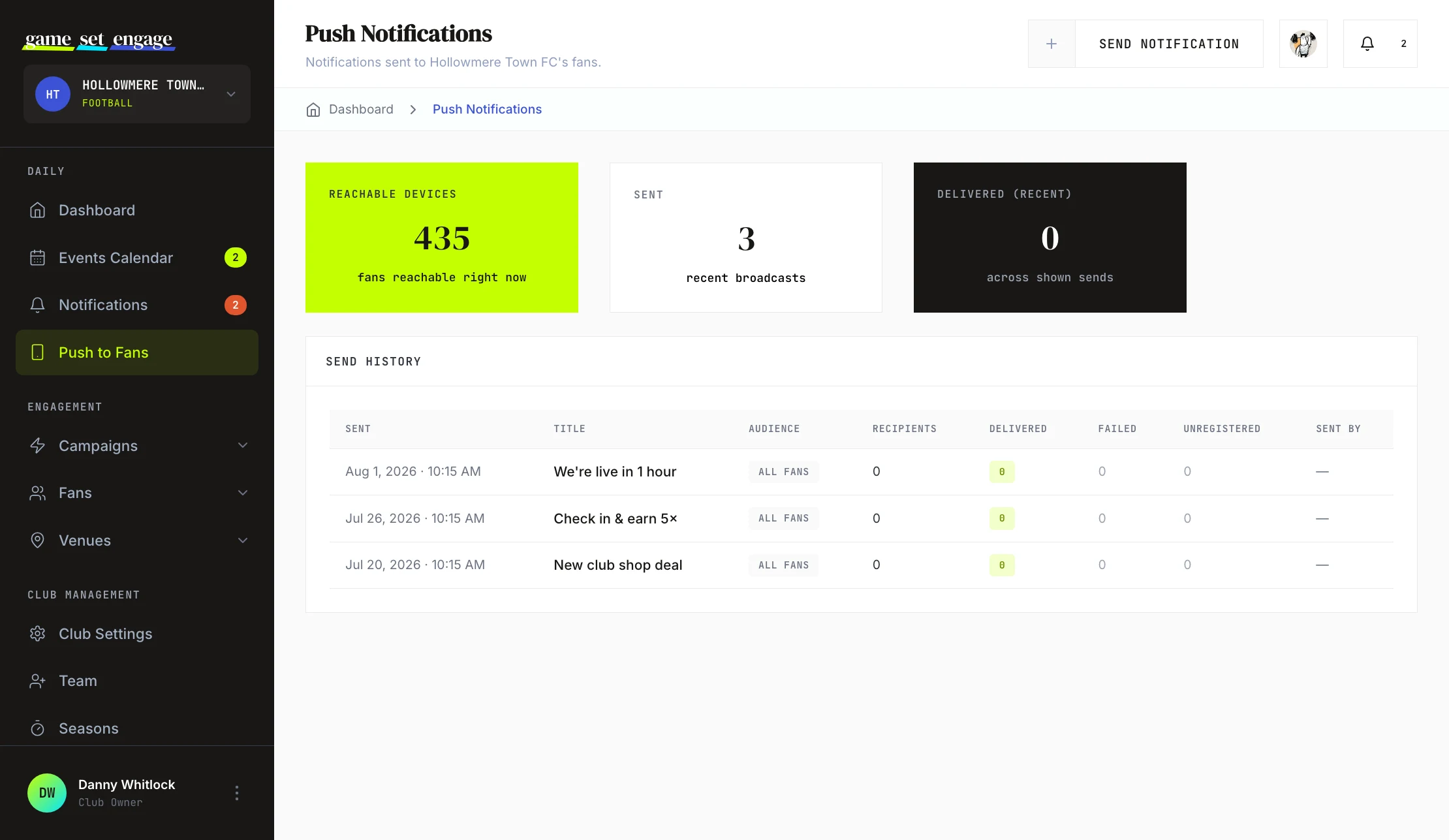
Back on the main Push Notifications page, the Send History table keeps a record of recent broadcasts. For each one you can see:
| Column | What it tells you |
|---|---|
| Sent | When the notification went out |
| Title | The headline, and the screen it opened |
| Audience | Whether the send went to all fans or to a specific segment |
| Recipients | How many devices it targeted |
| Delivered | How many were delivered |
| Failed | How many failed |
| Unregistered | Devices that are no longer reachable |
| Sent by | Which team member sent it |
The cards at the top of the page also tally your reachable devices, recent sends, and total deliveries across the sends shown.
Best practices
A few habits keep your notifications welcome rather than ignored:
- Send with purpose. The 3-per-hour limit is a floor, not a target. One timely, useful notification beats several thin ones.
- Lead with the value. "Check in now for 5× points" gives the fan a reason to tap.
- Match the destination to the message. Link to the exact campaign or page you're talking about.
- Mind the moment. A check-in reminder works best around kick-off, not the night before.
- Keep it short. Titles and messages have limits for a reason. Write to the glance.
What's next
- Fan segments and targeted push — build living fan groups and send to exactly the right ones
- Understanding your fans — see who's reachable and how engaged they are
- Creating your first campaign — build the campaign you point fans toward
- Campaign analytics and reports — measure what your sends drive
- Staying on top of notifications — your own dashboard alerts