One screen for your plan and billing
Everything about your plan lives on the Billing and Subscription screen: which plan you're on, how many fans you have against your limit, the other tiers available, and your billing details. You only pay for the fans you actually have, so this is the screen to check as your supporter base grows.
This guide walks through each part of that screen, explains the four plans, and shows how per-extra-fan pricing and upgrading work.
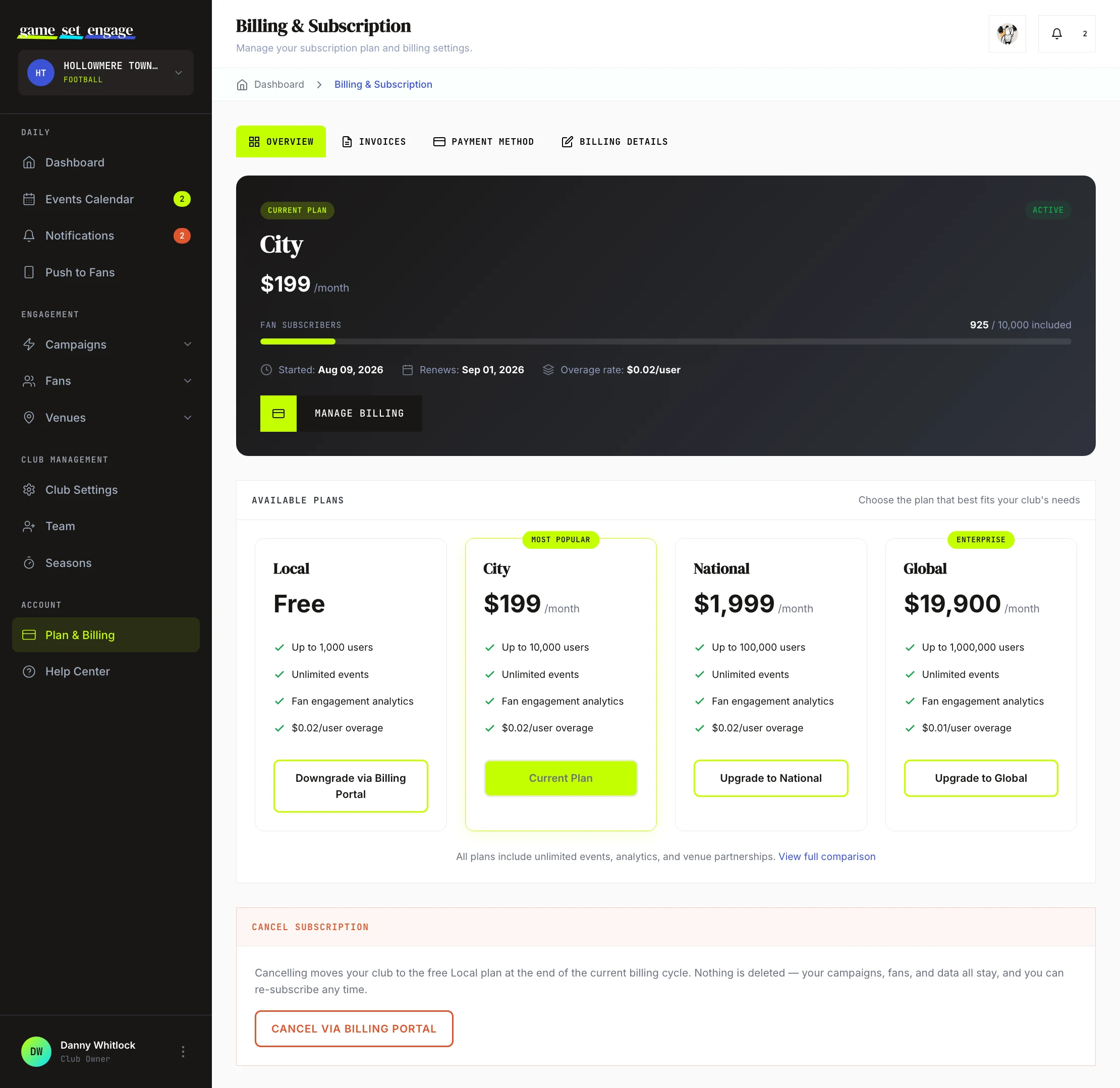
Open Billing and Subscription
From your dashboard, go to Club Management → Subscription (also reached from the Billing link). The screen is organised into four tabs:
- Overview — your current plan, fan usage, and the available plans
- Invoices — your subscription payment history
- Payment Method — the card on file, managed securely through Stripe
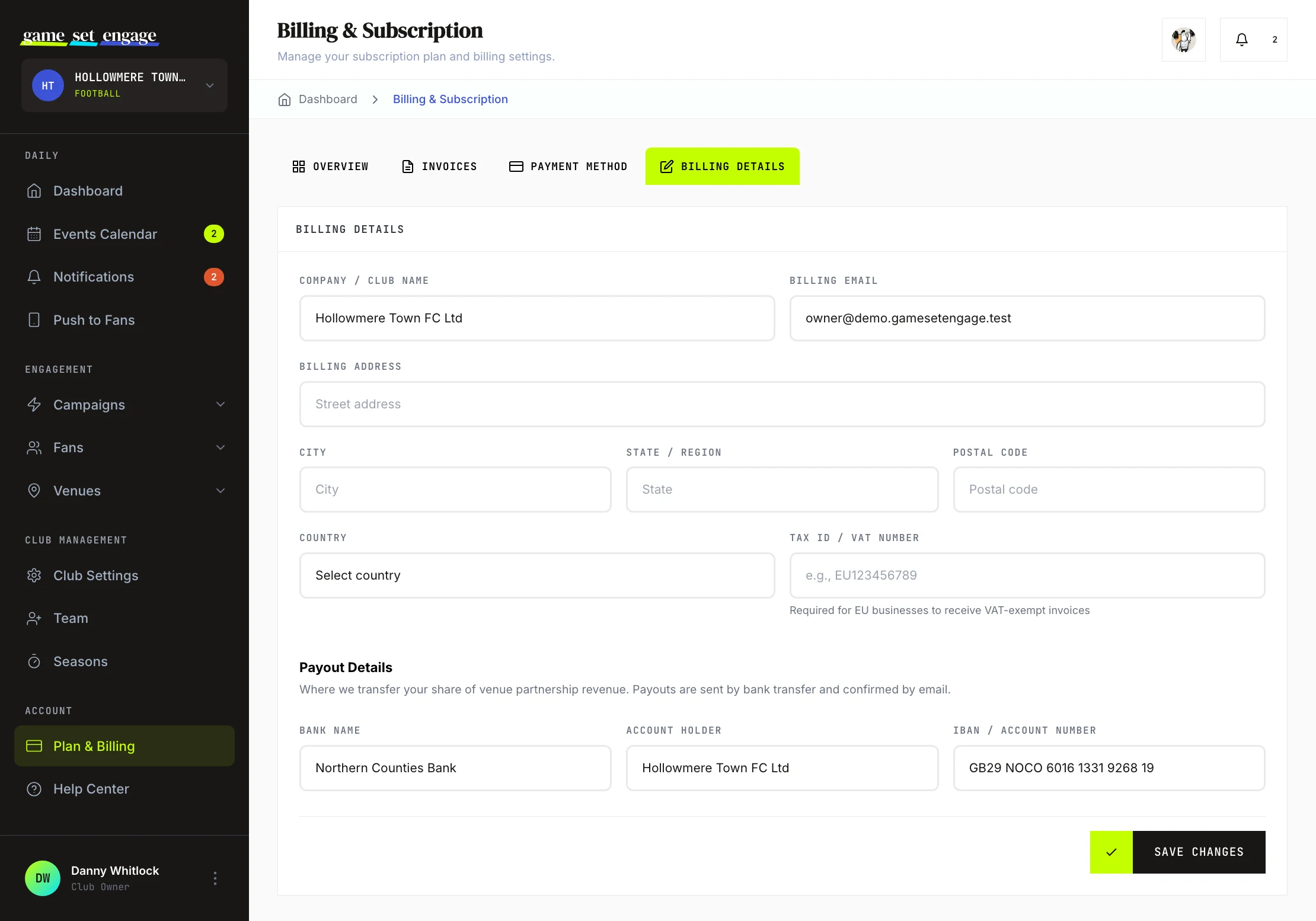
- Billing Details — your company name, address, tax ID, and the bank details we use to pay out your venue revenue
Managing your plan and billing is an owner-only area, so crew members won't see it.
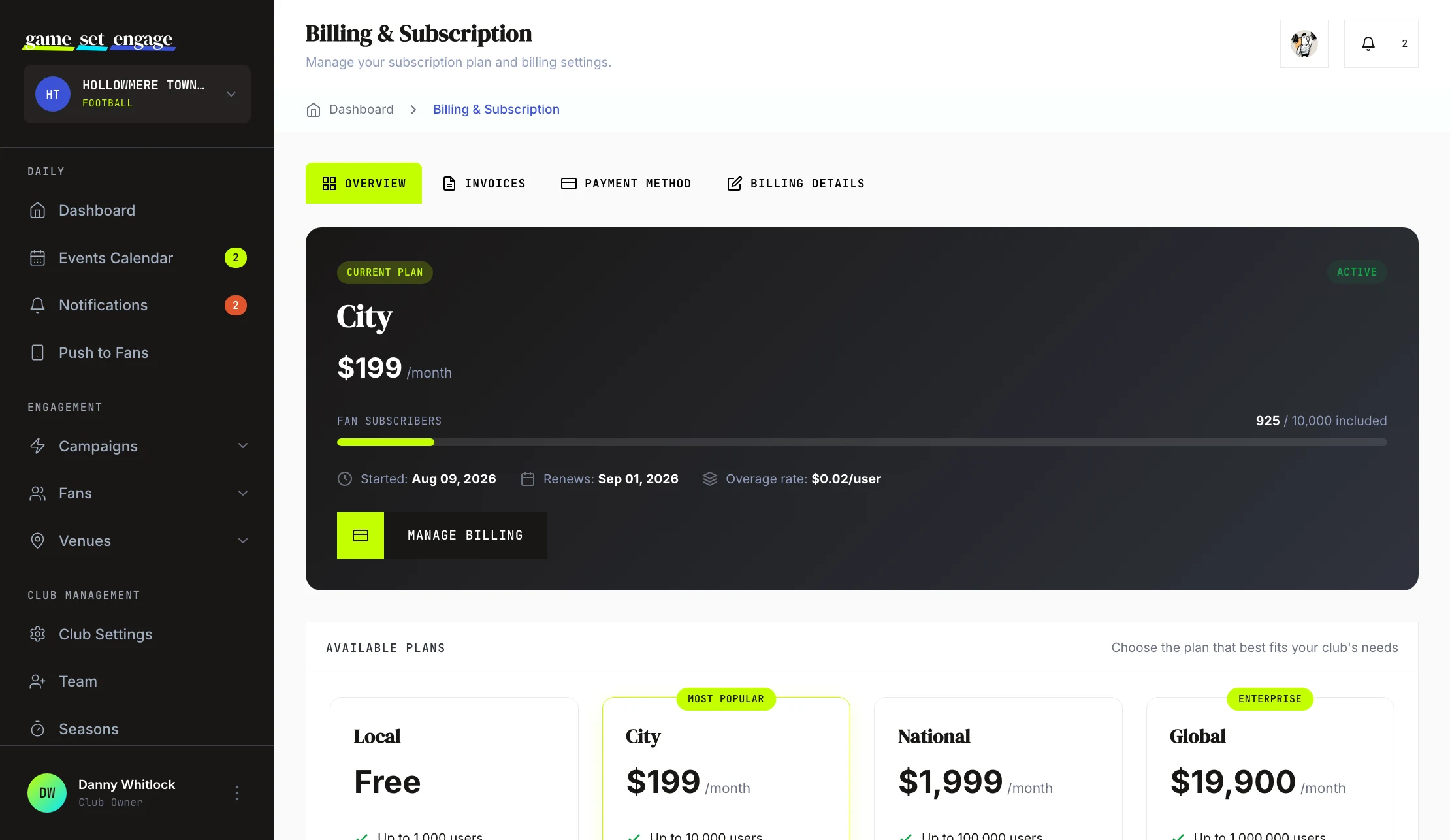
Read your current plan and fan usage
The Overview tab opens with your current plan front and centre: its name, monthly price, a status badge, and — on a paid plan — your next renewal date. The badge is normally Active; if a card payment fails it switches to Payment Past Due, and if you've chosen to cancel it shows the date your plan ends. Below that is the part to watch — your fan usage.
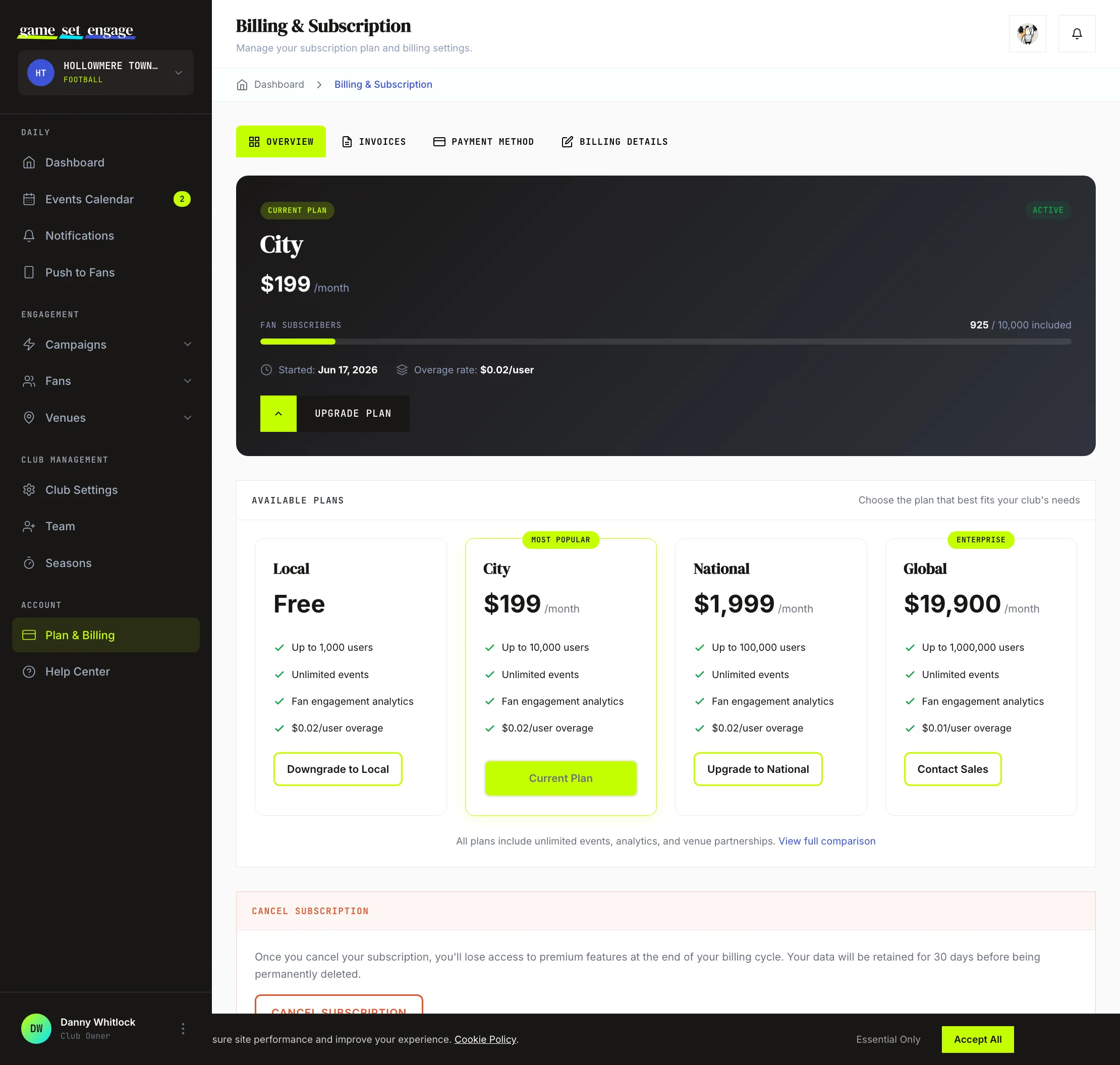
The usage bar shows your fan subscribers against the number included in your plan, like 3,200 / 10,000 included. The bar changes colour as you fill it up, and once you pass roughly 80% you'll see a prompt suggesting it might be time to upgrade. You'll also see your plan's overage rate, which is what you pay for each fan beyond your included limit.
Tip: Check this bar at the start of a big campaign push. Knowing how much headroom you have before you start helps you decide whether to upgrade first or let overage cover a short spike.
The four plans
Game Set Engage has four tiers. Every plan includes the core platform: the club dashboard, unlimited events, analytics and venue partnerships. Each step up covers more fans and lets your club keep a bigger share of venue fees. City adds the naim AI Assistant and Fan Segments, National adds API access, and Global adds dedicated onboarding and priority email support.
| Plan | Fans included | Price | Each extra fan |
|---|---|---|---|
| Local | Up to 1,000 | Free | $0.02 |
| City | Up to 10,000 | $199/mo | $0.02 |
| National | Up to 100,000 | $1,999/mo | $0.02 |
| Global | Up to 1,000,000 | $19,900/mo | $0.01 |
Local is free and a good place to start. City is the most popular tier for established clubs with a growing following. National suits major clubs with a national fanbase, and Global is built for international clubs and large sports organisations.
You can see every plan side by side in the Available Plans section of the Overview tab, with your current plan clearly marked.
How per-extra-fan pricing works
Your plan includes a set number of fans. If your club grows past that number, you don't get blocked — each fan beyond the limit is charged at your plan's overage rate.
- On Local, City, and National, each extra fan is $0.02
- On Global, each extra fan is $0.01
For example, a club on City (10,000 fans included) that grows to 10,500 fans would be charged for the 500 extra fans at $0.02 each. This means you're never paying for capacity you aren't using, and a short spike in followers won't cut your fans off — it's simply billed at the per-fan rate. When you're over your limit, the Overview tab shows exactly how many extra fans you have and the estimated monthly overage, so there are no surprises.
Tip: If you're consistently running well over your included fans, compare the overage you're paying against the next plan up. Past a certain point, upgrading costs less than the running overage.
Subscribe to a paid plan
When you're ready to move up, choose a tier in the Available Plans grid and select Subscribe. You're taken to a secure Stripe checkout page to enter your card details — Game Set Engage never sees or stores your card number. Once the payment goes through you land back on your billing screen with the new plan active, and every monthly renewal is charged to the same card automatically.
Your current plan is always labelled so you can see exactly where you stand before changing anything.
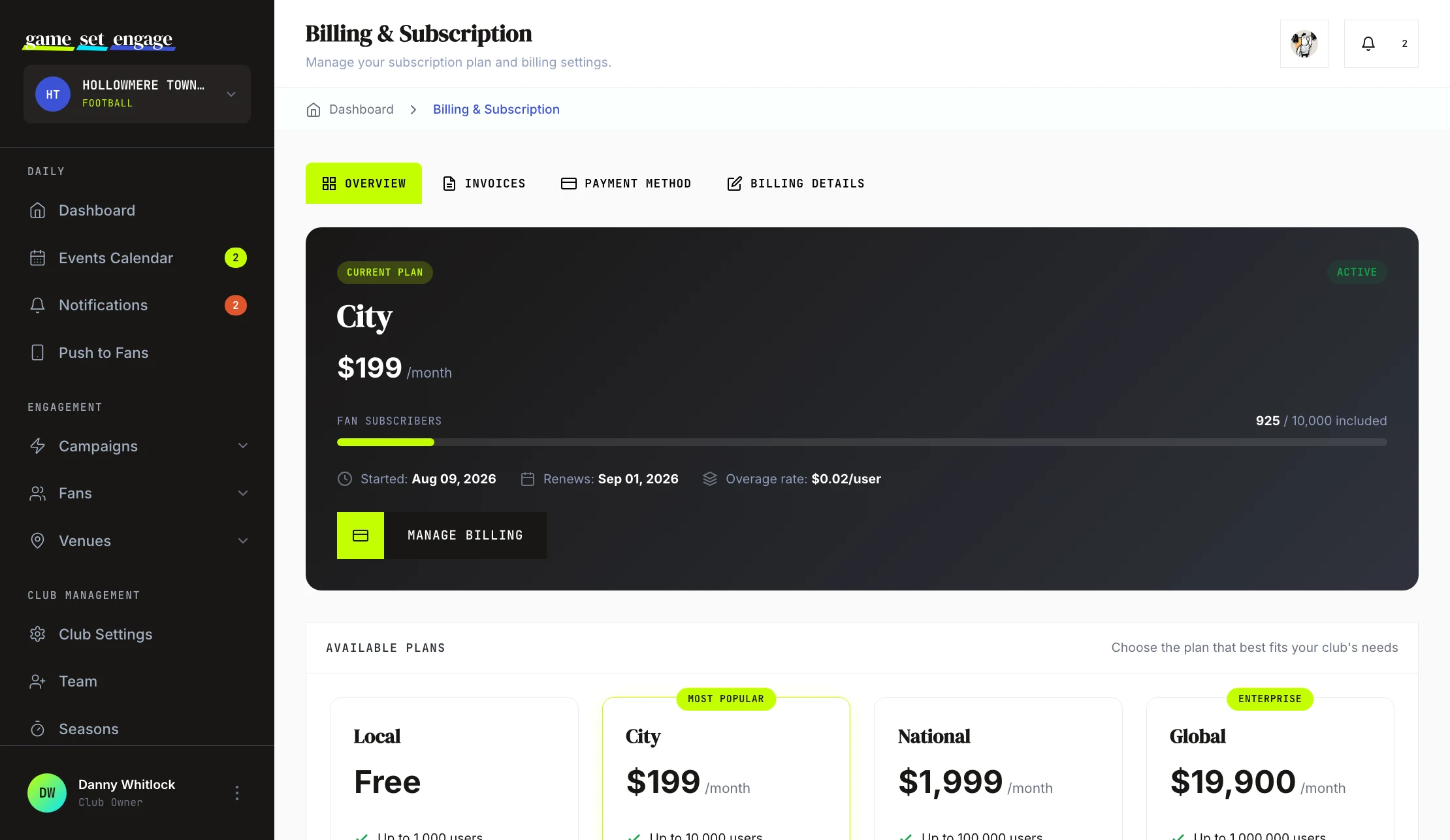
Manage your subscription in the billing portal
Once you're on a paid plan, the Manage Billing button opens your Stripe billing portal — the one place for everything about the subscription itself:
- Change your card or update the billing email on your receipts
- Switch plans — upgrades take effect immediately (you're only charged the prorated difference), downgrades apply at the end of the billing period
- Cancel — your plan stays active until the period ends, then your club moves to the free Local plan
Cancelling never deletes anything. Your campaigns, fans, and data all stay exactly as they are — you're simply back on Local's limits, and you can re-subscribe any time.
If a payment fails
If a renewal payment is declined — an expired card is the usual culprit — you'll get an email straight away and the billing screen shows a Payment Past Due notice. Your plan and all its features stay active for a 14-day grace period while the payment is retried. Update your card in the billing portal and everything carries on as normal.
If the payment still can't be collected after the grace period, your club is moved to the free Local plan automatically. Again, no data is deleted — re-subscribing puts you right back where you were.
Keep your billing details current
The Billing Details tab is where you set the information that appears on your invoices:
- Company or club name and billing email
- Billing address, including city, state, postal code, and country
- Tax ID / VAT number — required for EU businesses to receive VAT-exempt invoices
- Payout details — the bank account (bank name, account holder, IBAN) where we transfer your share of venue partnership revenue. You'll get an email confirmation every time a payout is sent. See Venue earnings and offer settings for how that revenue builds up.
Fill these in and click Save Changes. Your Invoices tab lists every subscription payment with its date, amount, and status, and the Payment Method tab takes you to the billing portal whenever you need to change the card.
What's next?
With your plan sorted, here's where to go next:
- Understanding your fans — see who's driving your fan count
- Campaign analytics and reports — measure what's working
- Inviting and managing your team — bring crew on board
- Club settings and profile — keep your club details current