What this guide helps you do
Building a campaign is the start. This guide covers everything that happens after: getting it live, editing it, finding it again, and tidying it away when it's done. By the end you'll know how to move a campaign through its whole life on Game Set Engage and keep your campaign list under control across a busy season.
Everything here happens on your club dashboard. Fans only ever see active campaigns inside their dates — and only in the Game Set Engage mobile app.
The campaign lifecycle
Every campaign has a status. There are four:
| Status | What it means | Visible to fans? |
|---|---|---|
| Draft | Built but not live. A work in progress. | No |
| Active | Published and running. | Yes, while inside its dates |
| Completed | Finished its run. | No |
| Archived | Tidied away for your records. | No |
A campaign usually goes Draft → Active → Archived, but you don't have to start with a draft — you can publish straight from the builder. The club owner can also move a live campaign back to draft to rework it. After that, only the owner can publish it again.
One detail worth knowing: a campaign that's still marked Active but whose end date has passed shows as Finished in your list. The campaign has stopped accepting participation; the label just reflects that it's run its course.
Publishing a draft
A draft is invisible to fans until you publish it. To make one live:
- Open Campaigns from the navigation.
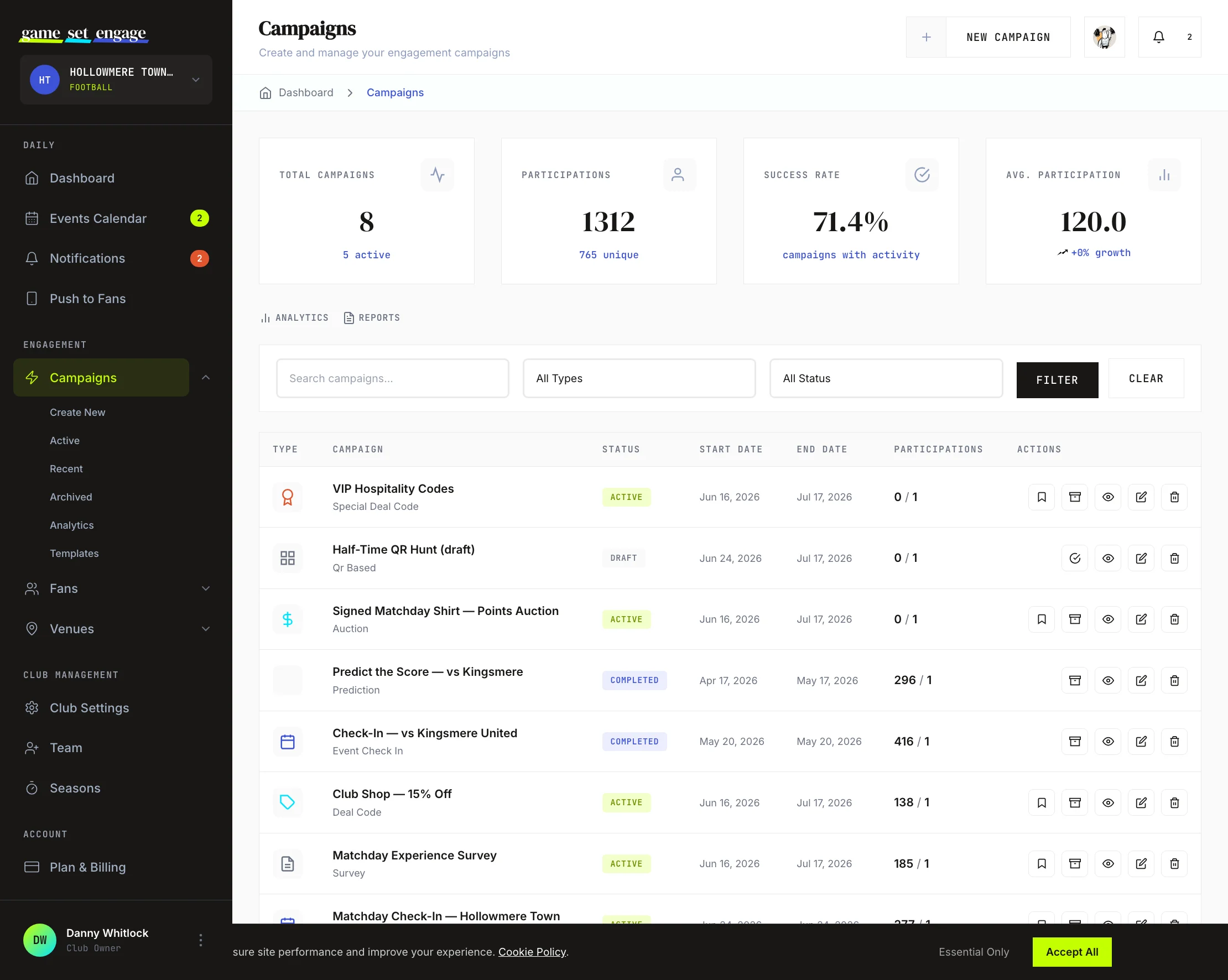
- Find the draft in your list — it carries a grey Draft badge.
- Click the Make Active action on that row.
The campaign becomes active immediately. As long as the current time is within its start and end dates, fans can take part right away. You'll also find Activate Campaign on the campaign's own page.
The club owner can publish any draft. A team member can publish a draft they created, as long as it has never been live.
Saving an edit doesn't change a campaign's status. When you're building a brand-new campaign, Publish Campaign on the last step skips the draft stage entirely.
Tip: Double-check the start and end dates before publishing. An active campaign whose start date is in the future won't accept participation until that date arrives.
Editing a campaign
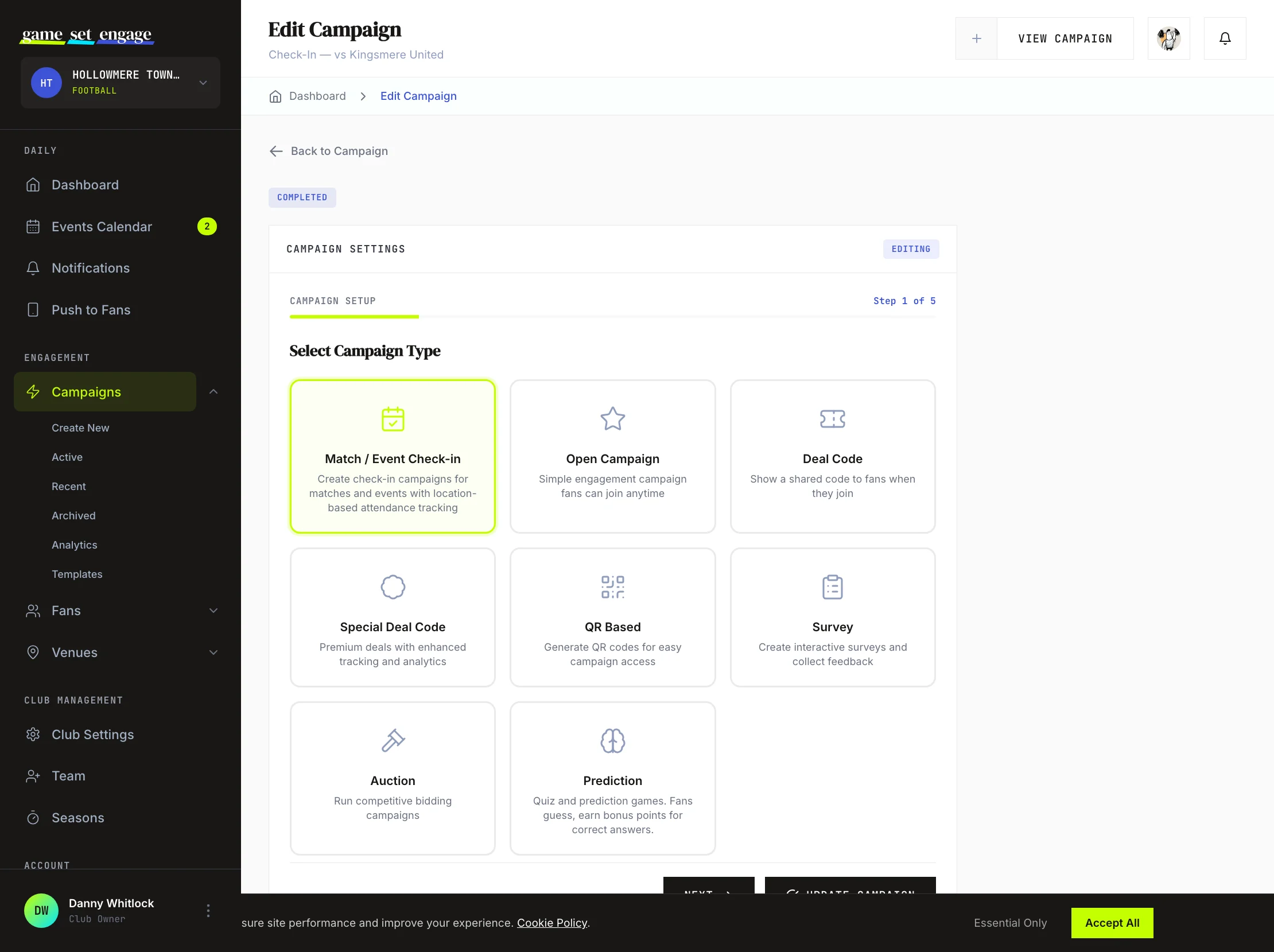
To change a campaign, click the Edit action on its row. This reopens the same five-step builder you used to create it, with every field filled in. Move through the steps with Next and Previous, change what you need, and click Update Campaign to save.
You can edit a campaign in any status. Editing a live campaign updates it in place — useful for fixing a typo or extending an end date mid-run.
Tip: Need to take a live campaign offline to rework it? The club owner can use the Make Draft action on its row. It drops out of the fans' view while you make changes, and the owner publishes it again when it's ready.
Archiving a campaign
Archiving moves a finished campaign out of your active workspace without deleting it. Its data stays intact — you keep the participation numbers and can still review how it did.
The club owner uses the Archive Campaign action on the row of an active or completed campaign. Archived campaigns gather in the Campaign Archive, where you can review past performance, export participation data, and keep your records straight. Restore to Drafts brings an archived campaign back as a draft for the owner to check and publish.
Archiving is the tidy way to close out a campaign. Delete is only for a campaign nobody has taken part in, like a draft you no longer need. It removes the campaign for good, and you'll be asked to confirm first because deletion can't be undone. The club owner can delete any such campaign; a team member can delete only a draft they created that has never been live.
Once a fan has taken part, nobody can delete the campaign: those participations are part of your fans' history with your club. The club owner can move it back to draft or archive it instead. The same goes for campaigns with partner venue check-ins, which are the record of what the venue owes you. Their approved check-ins still go on the venue's next monthly invoice.
The Active, Recent, and Archived views
Alongside the main list, you have three focused views to jump straight to what you need:
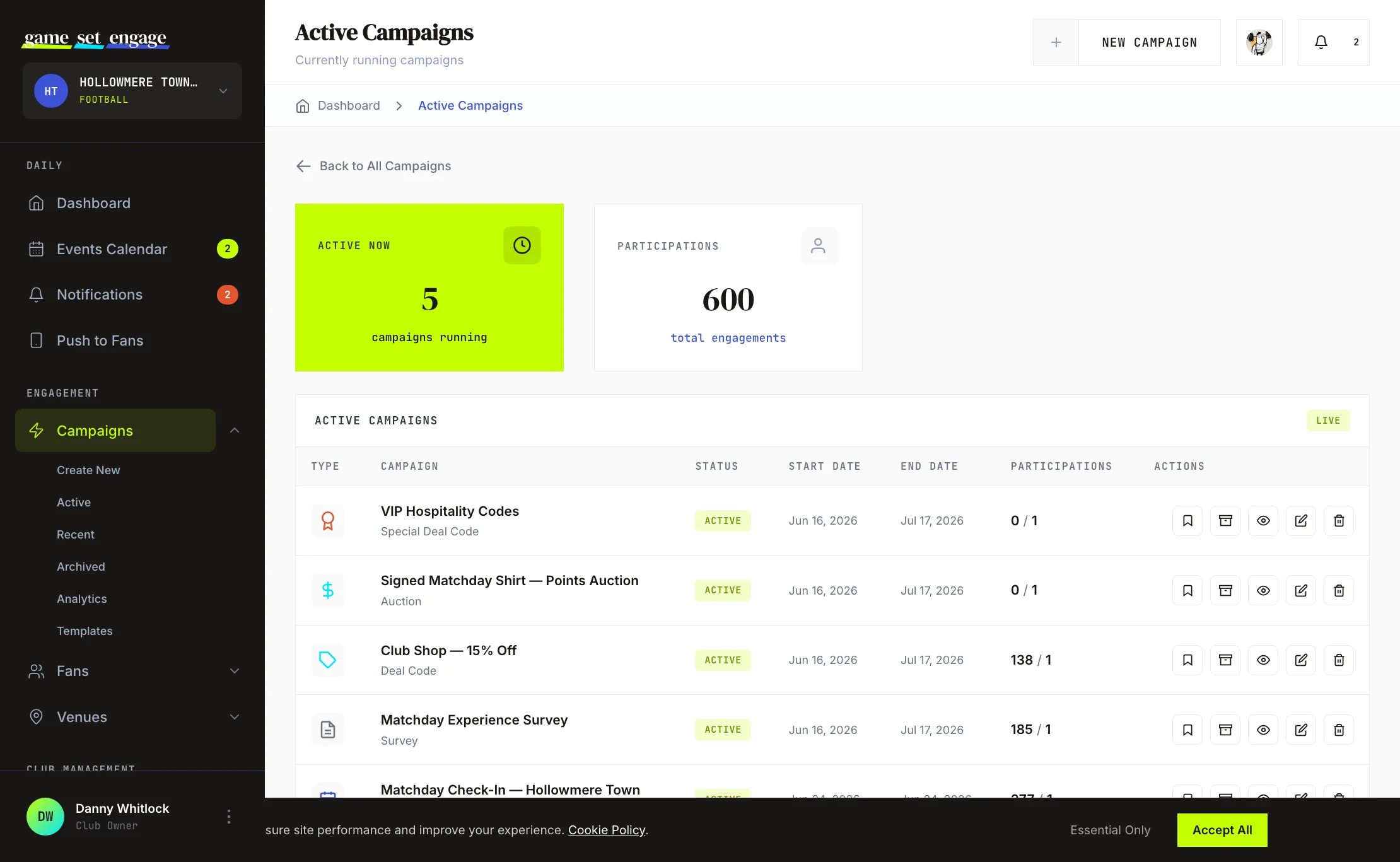
- Active — campaigns running right now (published and still inside their dates), with a quick count of how many are live and total participations.
- Recent — your ten most recently created campaigns, whatever their status. The fastest way back to something you just made.
- Archived — your completed and archived campaigns, with summary stats and the option to export.
Each view shows the same campaign table — type, name, status, dates, participations, and the row actions — so you can act on a campaign from wherever you find it.
Filtering and searching the campaign list
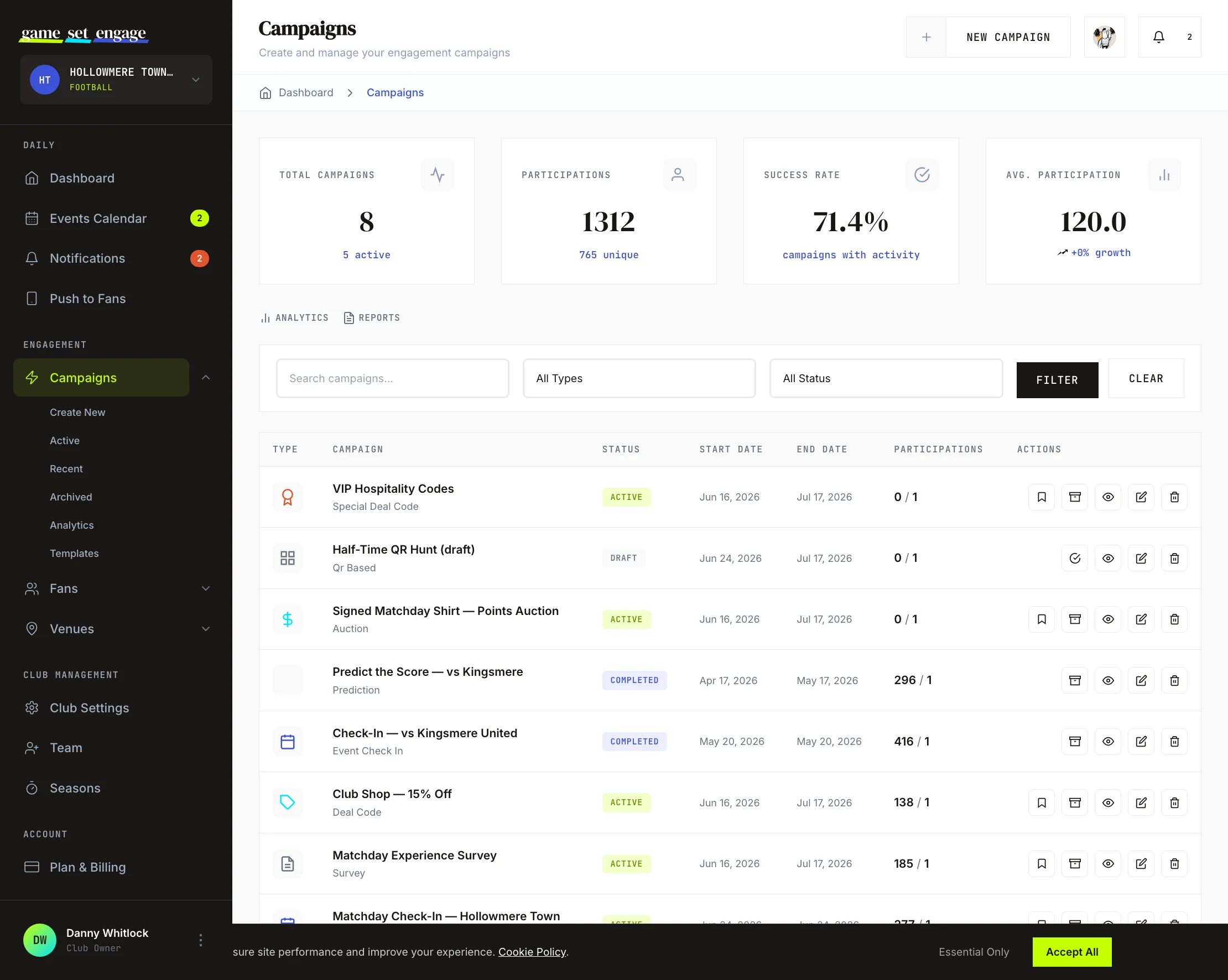
The main Campaigns page has a filter bar so you can find any campaign quickly. You can:
- Search by name — type part of a campaign's name
- Filter by type — narrow to one campaign type
- Filter by status — show only drafts, active, completed, or archived
Set any combination, click Filter, and the list updates. Clear resets it. At the top of the page, summary cards show your total campaigns, total participations, success rate, and average participation, so you get a read on the whole picture before you drill in.
Reusing question templates
If you run surveys and predictions, you don't have to rebuild your questions each time. While building a survey or prediction campaign, you can tick Save as reusable template and give it a name. Your saved question sets live under Question Templates.
From there you can see each template's name, type (survey or prediction), and questions, and delete any you no longer need. Next time you build a survey or prediction campaign, choose Start from a template in the question builder to load a saved set and edit from there.
Tip: Templates are a quick win for anything you repeat — a standard matchday survey, a weekly score predictor. Build it once, reuse it all season. See Reusable question templates for the full walkthrough.
What's next
- Creating your first campaign — the full builder, step by step
- Campaign types explained — pick the right type for each occasion
- Campaign analytics and reports — measure how your campaigns perform
- Surveys and predictions — build questions and save reusable templates
- Reusable question templates — save a question set once and reuse it all season