What this guide covers
Your dashboard is where you run everything for your club. This tour shows you the home overview at a glance, then walks through every section of the left-hand navigation so you always know where to find what you need. Fans never see this dashboard. They join your club, check in, and earn points in the Game Set Engage mobile app, while you manage all of it from here.
Read this once and the rest of the platform clicks into place.
The home overview
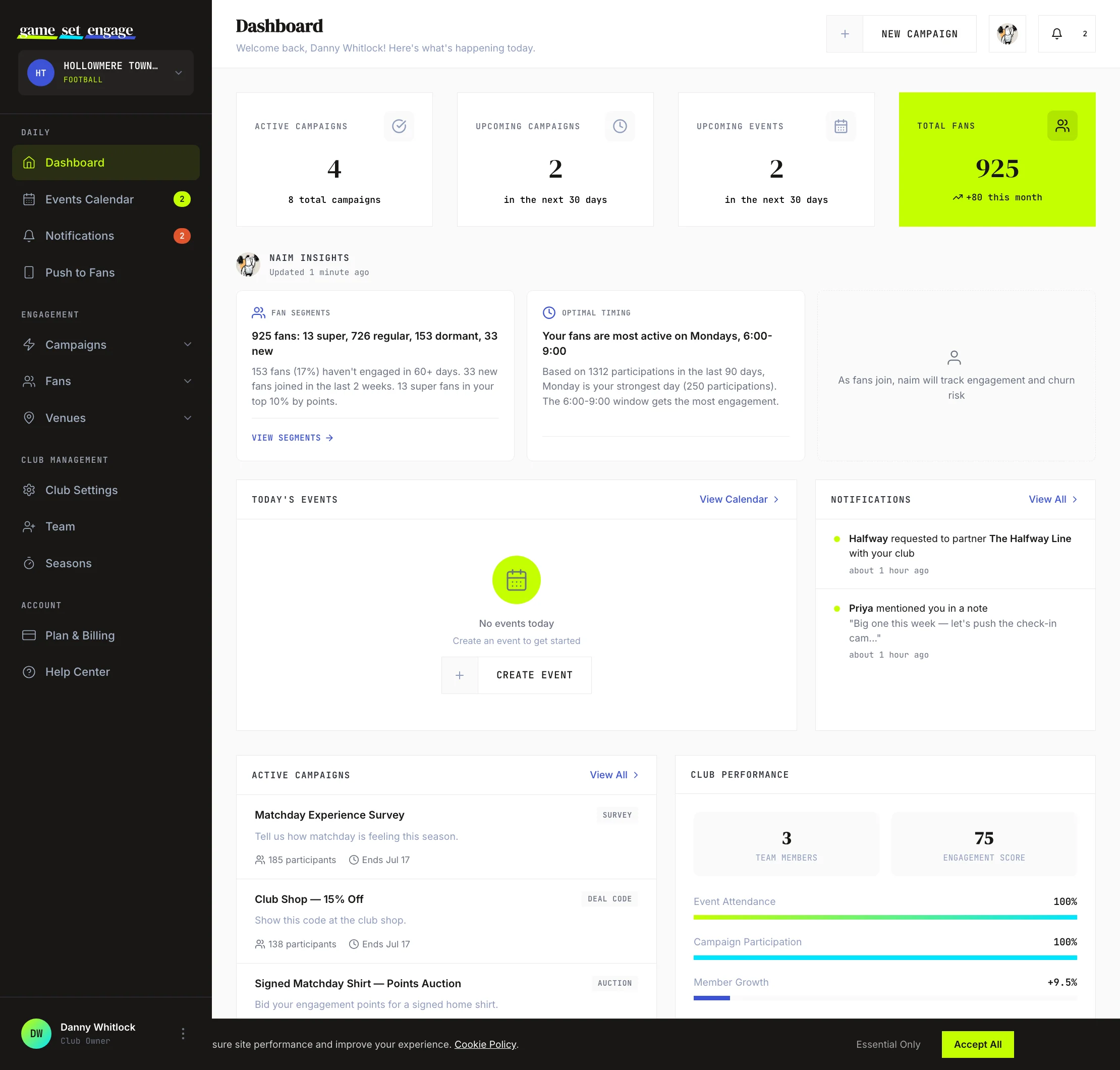
The home screen gives you the state of your club in one view. At the top, a page header greets you by name and has a New Campaign button so you can start a campaign from anywhere.
Stats cards
Four cards across the top show your headline numbers:
| Card | What it shows |
|---|---|
| Active Campaigns | Campaigns running right now, plus your total campaign count |
| Upcoming Campaigns | Campaigns starting in the next 30 days |
| Upcoming Events | Calendar events in the next 30 days |
| Total Fans | Your fanbase, with how many joined this month |
naim Insights
Below the stats, the naim Insights section surfaces AI-generated observations about your club. This is available on the City plan and above. On the Local plan the section shows a note that it unlocks when you upgrade.
Panels
The lower half of the screen splits into panels:
- Today's Events — what's on the calendar today, with a link to the full Events Calendar
- Notifications — your most recent activity, from team mentions to venue partner requests
- Active Campaigns — the campaigns fans are taking part in right now, with participant counts
- Club Performance — team member count, an engagement score, and bars for event attendance, campaign participation, and member growth
When a panel is empty, it shows a quick action to fill it, such as Create Event or Create Campaign.

The left navigation
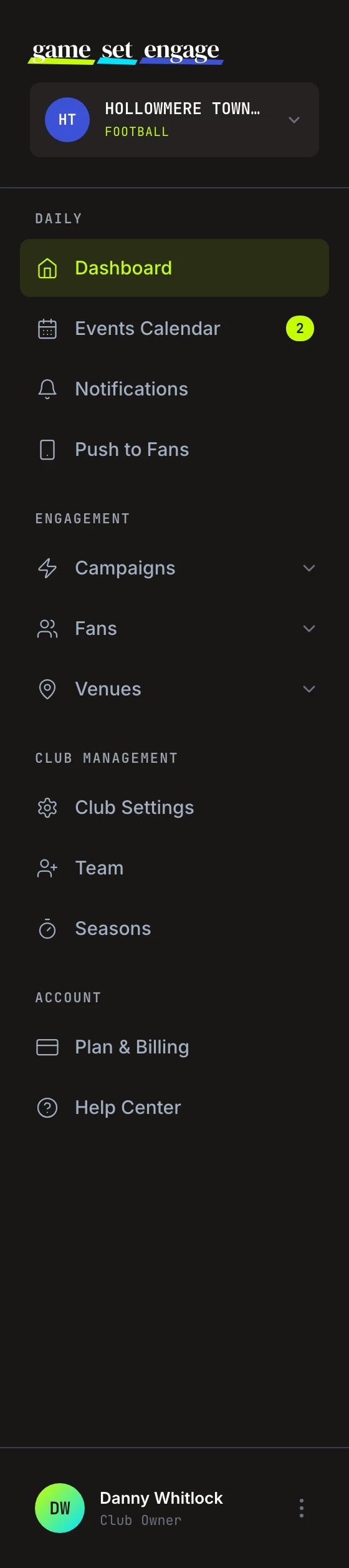
The menu on the left is grouped into four sections: Daily, Engagement, Club Management, and Account. Here's what each link does and where to learn more.
Daily
The screens you'll touch most often.
- Dashboard — the home overview described above.
- Events Calendar — your club's calendar of matches, training, and other events, with team notes and @mentions. A badge shows how many events are coming up. See Events calendar and team notes.
- Notifications — every alert in one place, from mentions to partner requests. An unread count appears as a badge. See Staying on top of notifications.
- Push to Fans — send a push notification straight to fans' phones in the mobile app. See Push notifications to fans.
Engagement
Everything that connects you with fans and venues. Each of these expands into a submenu.
Campaigns — create and manage the activities fans take part in. The submenu holds:
- Create New — open the campaign builder
- Active — campaigns running now
- Recent — recently finished campaigns
- Archived — campaigns you've put away
- Analytics — performance reports across your campaigns
- Templates — saved survey templates to reuse
Start with Creating your first campaign, compare types in Campaign types explained, and learn to run them in Managing and publishing campaigns.
Fans — see who follows your club. The submenu holds:
- Search Fans — find a specific fan
- All Fans — your full fan list
- Reports — fan growth and engagement reports
To understand the numbers, read Understanding your fans.
Venues — manage the pubs, bars, and restaurants that act as check-in locations. You set the points for each place a fan checks in: typically highest at the stadium, less at a partner venue and least at home. The submenu holds:
- All Venues — the venues your club has approved, plus a count of every venue on the platform
- Pending Partners — venues asking to partner with your club, with a badge for new requests. You or anyone on your crew can approve them, and an approval covers your club only
- Earnings — what your venue partnerships bring in
- Reports — venue performance reports
- Offer Settings — the incentives venues offer fans
See Building your venue partner network and Venue earnings and offer settings.
Club Management
Your club's profile and people.
- Club Settings — your club name, sport, home ground, location, and logo. See Club settings and profile.
- Fan Tags — the labels your team picks from when tagging fans. Fans never see them.
- Club Knowledge — notes about your sponsors, partner venues and tone that naim reads when it answers your questions (City plan and up). See Club Knowledge.
- Team — invite crew members and manage their access. See Inviting and managing your team.
- Seasons — organise your club's activity into seasons. See Seasons explained.
Account
Your plan and your help.
- Plan & Billing — your current plan, fan limits, and upgrades. See Plan, billing, and upgrades.
- Help Center — guides and answers, always one click away.
Tip: Sections with a chevron expand into submenus. Click the chevron to open one without leaving the page you're on.
What's next
Now that you know your way around, put it to use:
- Creating your first campaign — the full builder, step by step
- Events calendar and team notes — plan match day and brief your crew
- Understanding your fans — get to know who's turning up
- Building your venue partner network — approve venues that ask to partner with your club